
As I mentioned in this blog posting, I use a UFM Workflow to perform a daily backup of selected directories, encrypt the compressed files then upload the encrypted files to a remote server.
In this blog posting, I will show you how to create a UFM Workflow that will compress the contents of 3 directories (and sub-directories), encrypt the 3 zip files and then use Sftp to upload the 3 files to a remote server. This example is designed for a Windows desktop PC but it could easily be modified for Linux, Mac OS X, Unix, etc.
Step #1: On the Windows PC in the UFM install directory, create a file called ufm_zip_enc_ftp.xml and copy the following into the file:
<?xml version="1.0" encoding="ISO-8859-1"?>
<!DOCTYPE UFM_Workflow SYSTEM "UFM_Workflow.dtd">
<UFM_Workflow>
  <Global>
    <Property name="UploadDir" value="G:\Upload" />
  </Global>

  <Actions>
    <Delete>
      <File dir="${UploadDir}">*</File>
    </Delete>

    <Zip todir="${UploadDir}" tofile="data.zip">
      <File>E:\Data</File>
    </Zip>

    <Zip todir="${UploadDir}" tofile="eclipse_wk.zip">
      <File>F:\eclipse\workspace</File>
    </Zip>

    <Zip todir="${UploadDir}" tofile="VSData.zip">
      <File>F:\VSData</File>
    </Zip>

    <EncryptFile todir="${UploadDir}"
              tofile="data.enc"
              keysize="256"
              passphrase="decrypt_this_NSA..1..can't_touch_this!!">
      <File>${UploadDir}\data.zip</File>
    </EncryptFile>

    <EncryptFile todir="${UploadDir}"
              tofile="eclipse_wk.enc"
              keysize="256"
              passphrase="decrypt_this_NSA..2..can't_touch_this!!">
      <File>${UploadDir}\eclipse_wk.zip</File>
    </EncryptFile>

    <EncryptFile todir="${UploadDir}"
              tofile="VSData.enc"
              keysize="256"
              passphrase="decrypt_this_NSA..3..can't_touch_this!!">
      <File>${UploadDir}\VSData.zip</File>
    </EncryptFile>

    <SFtp xmlfile="sftp_upload.xml" />

  </Actions>
</UFM_Workflow>
So lets review the 8 actions in the UFM Workflow.
- The 1st action is a Delete Action to cleanup any files from a previous run.
- The 2nd action compresses the contents of the E:\Data directory and sub-directories and write the zip file to the G:\Upload directory.
- The 3rd action compresses the contents of the F:\eclipse\workspace directory and sub-directories and write the zip file to the G:\Upload directory.
- The 4th action compresses the contents of the F:\VSData directory and sub-directories and write the zip file to the G:\Upload directory.
- The 5th action encrypts the data.zip using AES 256-bit encryption and stores the file in the G:\Upload directory.
- The 6th action encrypts the eclipse_wk.zip using AES 256-bit encryption and stores the file in the G:\Upload directory.
- The 7th action encrypts the VSData.zip using AES 256-bit encryption and stores the file in the G:\Upload directory.
- The 8th action uploads the 3 encrypted files to a remote server using Sftp.
Step #2: On the Windows PC, in the sftp directory, create a file called sftp_upload.xml and copy the following into the file:
<?xml version="1.0" encoding="ISO-8859-1"?>
<!DOCTYPE UFM_SFtp SYSTEM "UFM_SFtp.dtd">
<UFM_SFtp>

  <Hostname>10.10.10.10</Hostname>
  <UserID>MyUserID</UserID>
  <Password>mypwd</Password>

  <SFtpCmds>

    <Put remotedir="secureDir">
      <File dir="G:\Upload">*.enc</File>
    </Put>

  </SFtpCmds>

</UFM_SFtp>
Step #3: On the Windows PC, start UFM to run the Workflow:
./ufm.sh ufm_zip_enc_ftp.xml
UFM will start, compress the selected directories, encrypt the compressed files and then upload the files to a remote server.
The last item is to create a Window’s Task Scheduler entry and have the UFM Workflow run everyday at a particular time.
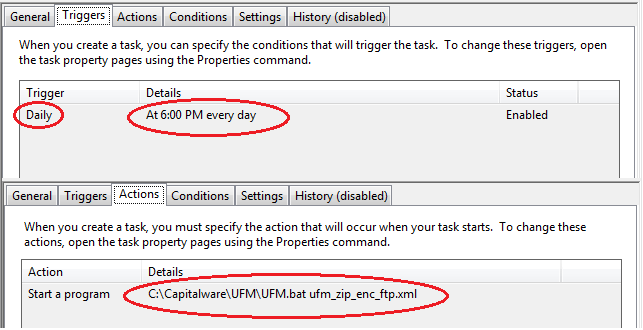
This blog demonstrates how easy it is to backup selected directories to a remote server. Hopefully, this will motive people to do daily backups of their important files.
Regards,
Roger Lacroix
Capitalware Inc.
