WebSphere MQ v7.0.x End of Service

IBM has announced the end of service date for WebSphere MQ v7.0.x. The end of service date for WebSphere MQ v7.0.x on distributed platforms (Linux, Unix, Windows, IBM i and z/OS) is September 2015. The official official announcement can be found here:
http://www-01.ibm.com/common/ssi/cgi-bin/ssialias?subtype=ca&infotype=an&supplier=897&letternum=ENUS914-067

Regards,
Roger Lacroix
Capitalware Inc.

IBM i (OS/400), IBM MQ, Linux, Unix, Windows, z/OS Comments Off on WebSphere MQ v7.0.x End of Service

IBM MQ V8 Released

It appears that IBM has changed MQ’s name (again) from WebSphere MQ to IBM MQ. I guess someone at IBM decided MQ does not belong under the WebSphere umbrella.

IBM has released IBM MQ V8:
http://www-01.ibm.com/common/ssi/ShowDoc.wss?docURL=/common/ssi/rep_ca/7/897/ENUS214-177/index.html&lang=en&request_locale=en

Highlights
– Verification of user ID and password, making use of either operating system definitions or a Lightweight Directory Access Protocol (LDAP) repository
– Use of Domain Name System (DNS) host names in Channel Authentication Records (CHLAUTH)
– Channel-level certificates, allowing multiple certificates to be used in a queue manager
– Routed publish-subscribe in clusters
– Enhanced status reporting for publish-subscribe
– Performance enhancements including queue manager scaling and multiplexed client performance
– Support for updated standards
– Support on all platforms for 64-bit queue managers
– Support for multiple transmission queues defined for use in a clustered queue manager on all platforms
– Availability on all platforms of both Advanced Message Security and Managed File Transfer

Planned availability for IBM MQ V8 is May 23, 2014 for Electronic software delivery and June 13, 2014 for Physical media.

IBM MQ (aka WebSphere MQ) homepage
http://www.ibm.com/software/integration/wmq/

Regards,
Roger Lacroix
Capitalware Inc.

IBM i (OS/400), IBM MQ, IBM MQ Appliance, Linux, Unix, Windows Comments Off on IBM MQ V8 Released

IBM MQ V8 for z/OS Released

It appears that IBM has changed MQ’s name (again) from WebSphere MQ for z/OS to IBM MQ for z/OS. I guess someone at IBM decided MQ does not belong under the WebSphere umbrella.

IBM has released IBM MQ V8 for z/OS:
http://www-01.ibm.com/common/ssi/cgi-bin/ssialias?subtype=ca&infotype=an&appname=iSource&supplier=877&letternum=ENUSZP14-0222

Highlights
– Verification of user ID and password, making use of either operating system definitions
– Use of Domain Name System (DNS) host names in Channel Authentication Records (CHLAUTH)
– Channel-level certificates, allowing multiple certificates to be used in a queue manager
– Routed publish-subscribe in clusters
– Enhanced status reporting for publish-subscribe
– 64-bit buffer pools for larger message caching
– Wider log Relative Byte Address (RBA) for increased uptime
– Support for updated standards
– Support for multiple transmission queues defined for use in a clustered queue manager on all platforms
– MQ client connectivity without additional charge with the removal of the Client Attachment Feature

Planned availability for IBM MQ V8 for z/OS is June 13, 2014.

IBM MQ (aka WebSphere MQ) homepage
http://www.ibm.com/software/integration/wmq/

Regards,
Roger Lacroix
Capitalware Inc.

IBM MQ, z/OS Comments Off on IBM MQ V8 for z/OS Released

Ubuntu 14.04 Released

Ubuntu has just released Ubuntu v14.04.
http://releases.ubuntu.com/14.04/

Super-fast, easy to use and free, the Ubuntu operating system powers millions of desktops, netbooks and servers around the world. Ubuntu does everything you need it to. It’ll work with your existing PC files, printers, cameras and MP3 players. And it comes with thousands of free apps.

Regards,
Roger Lacroix
Capitalware Inc.

Linux, Open Source, Operating Systems Comments Off on Ubuntu 14.04 Released

Watching a Directory and Sending Files with Universal File Mover (How To #11)

In this blog posting, I will show you how to configure Universal File Mover to watch a directory for new files and send the new files immediately. In this example, Universal File Mover will connect to the queue manager in “client mode”.

In the Universal File Mover’s Watch Action, the user can specify all files (‘*’) or select particular files by their file extension (i.e. txt) to have UFM actions done against the file (i.e. MQSend).
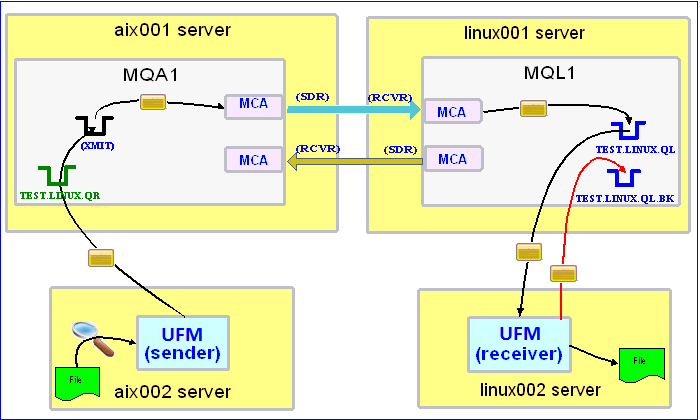

In this example, the following servers are used but they only have WebSphere MQ (WMQ) Client installed (no queue managers):
– aix002 is an AIX server with WMQ Client and UFM software installed
– linux002 is a Linux server with WMQ Client and UFM software installed

In this example, the following queue managers are used:
MQA1 is a queue manager residing on a AIX (aix001) server (sender)
MQL1 is a queue manager residing on a Linux (linux001) server (receiver)

TEST.LINUX.QL and TEST.LINUX.QL.BK are local queues defined in queue manager MQL1 (receiver)
TEST.LINUX.QR is a remote queue defined in queue manager MQA1 (sender)

If you do not know how to define/setup communication between 2 queue managers then follow the instructions in this blog posting:
https://www.capitalware.com/rl_blog/?p=509

Step #1: On the linux002 server, create a file in the mq directory called mql1.xml and copy the following into the file:

<?xml version="1.0" encoding="ISO-8859-1"?>
<!DOCTYPE UFM_MQ SYSTEM "UFM_MQ.dtd">
<UFM_MQ>
    <QMgrName>MQL1</QMgrName>
    <QueueName>TEST.LINUX.QL</QueueName>
    <Hostname>linux001</Hostname>
    <ChannelName>SYSTEM.DEF.SVRCONN</ChannelName>
    <Port>1414</Port>
    <UserID>tester</UserID>
</UFM_MQ>

The mql1.xml (UFM_MQ XML) file describes how to connect to the remote MQL1 queue manager on server linux001. The connection will use UserID of tester. If you do not have that UserID defined on the linux001 server then use a UserID that is defined.

Step #2: On the linux002 server, in the UFM install directory, create a file called ufm_receive_test_11.xml and copy the following into the file:

<?xml version="1.0" encoding="ISO-8859-1"?>
<!DOCTYPE UFM_Workflow SYSTEM "UFM_Workflow.dtd">
<UFM_Workflow>

  <Actions>
    <MQReceive run="D" >
      <MQ>
        <MQFile>mql1.xml</MQFile>
        <BackOutQName>TEST.LINUX.QL.BK</BackOutQName>
      </MQ>
      <Default>
         <Directory override="Y">/home/roger/UFM/</Directory>
      </Default>
    </MQReceive>
  </Actions>

</UFM_Workflow>

When UFM is started, it will run as a daemon (run=”D”) and use a backout queue called TEST.LINUX.QL.BK just in case there is an issue with a message. UFM will override the message’s specified directory and use the one provided. Either create /home/roger/UFM/ directory on your Linux server or use a directory that already exist on your Linux server.

Step #3: On the linux002 server, start UFM to receive the file transfers:

./ufm.sh ufm_receive_test_11.xml &

Step #4: On the aix002 server, create a file in the mq directory called mqa1.xml and copy the following into the file:

<?xml version="1.0" encoding="ISO-8859-1"?>
<!DOCTYPE UFM_MQ SYSTEM "UFM_MQ.dtd">
<UFM_MQ>
    <QMgrName>MQA1</QMgrName>
    <QueueName>TEST.LINUX.QR</QueueName>
    <Hostname>aix001</Hostname>
    <ChannelName>SYSTEM.DEF.SVRCONN</ChannelName>
    <Port>1414</Port>
    <UserID>tester</UserID>
</UFM_MQ>

The mqa1.xml (UFM_MQ XML) file describes how to connect to the remote MQA1 queue manager on server aix001. The connection will use UserID of tester. If you do not have that UserID defined on the aix001 server then use a UserID that is defined.

Step #5: On the AIX server, in the UFM install directory, create a file called ufm_watch_test_1.xml and copy the following into the file:

<?xml version="1.0" encoding="ISO-8859-1"?>
<!DOCTYPE UFM_Workflow SYSTEM "UFM_Workflow.dtd">
<UFM_Workflow>

  <Actions>
    <Watch pollinterval="5">

      <WatchItem type="F">
        <File>/apps/test/amce.txt</File>
        <Actions>
          <MQSend delete="Y" format="S">
            <File>${WATCH_FOUND_FILE}</File>
            <MQ>
              <MQFile>mqa1.xml</MQFile>
            </MQ>
            <Remote>
              <Directory>/apps/other/</Directory>
            </Remote>
          </MQSend>
        </Actions>
      </WatchItem>

      <WatchItem type="D">
        <Directory>/apps/test2/</Directory>
        <Actions>
          <MQSend delete="Y" format="S">
            <File>${WATCH_FOUND_FILE}</File>
            <MQ>
              <MQFile>mqa1.xml</MQFile>
            </MQ>
            <Remote>
              <Directory>/apps/other2/</Directory>
            </Remote>
          </MQSend>
        </Actions>
      </WatchItem>

      <WatchItem type="D">
        <Directory>/apps/test3/</Directory>
        <Extension>txt</Extension>
        <Extension>csv</Extension>
        <Actions>
          <MQSend delete="Y" format="S">
            <File>${WATCH_FOUND_FILE}</File>
            <MQ>
              <MQFile>mqa1.xml</MQFile>
            </MQ>
            <Remote>
              <Directory>/apps/other3/</Directory>
            </Remote>
          </MQSend>
        </Actions>
      </WatchItem>

    </Watch>
  </Actions>

</UFM_Workflow>

When UFM is started, the Watch Action will run forever. The poll interval for the Watch Action tells UFM to continuously scan (every 5 seconds) the files/directories given in the WatchItem elements of the Watch element.

(1) The first WatchItem element has UFM waiting for the file “/apps/test/amce.txt” to appear and when it does, UFM performs the Actions associated (i.e. MQSend) within the WatchItem element. After the MQSend action sends the file, the file is delete.

(2) The second WatchItem element has UFM watching a directory (/apps/test2/) for any file to appear in that directory. When a file appears, UFM performs the Actions associated (i.e. MQSend) within the WatchItem element.

(3) The third WatchItem element has UFM watching a directory (/apps/test3/) for any file with the file extension of “txt” or “csv” to appear in that directory. When a matching file appears, UFM performs the Actions associated (i.e. MQSend) within the WatchItem element.

Note: The ${WATCH_FOUND_FILE} variable is by the user as a place holder to the “found file” from the WatchItem. UFM will transform the variable to the actual file name when the Action is executed.

Step #6: On the aix002 server, start UFM to begin monitoring for files:

./ufm.sh ufm_watch_test_1.xml &

UFM will start, watch for files to arrive in the specified directory. Note: To stop the Watch Action, the user will need to use the Ctl-C or kill command.

Step #7: On the linux002 server, verify that the test file was put into the /home/roger/UFM/ directory or whatever directory you specified in the ufm_receive_test_11.xml file.

Step #8: Finally, we need to stop UFM daemon that is running on the linux002 server. In the UFM install directory, create a file called ufm_putquit_test_11.xml and copy the following into the file:

<?xml version="1.0" encoding="ISO-8859-1"?>
<!DOCTYPE UFM_Workflow SYSTEM "UFM_Workflow.dtd">
<UFM_Workflow>
  <Actions>
    <MQPutQuit>
      <MQ>
        <MQFile>mql1.xml</MQFile>
      </MQ>
    </MQPutQuit>
  </Actions>
</UFM_Workflow>

Step #9: On the linux002 server, run UFM with the MQPutQuit action:

./ufm.sh ufm_putquit_test_11.xml

This blog demonstrates how easy it is to watch a directory for files or for a single file to arrive then immediately send the files using UFM.

Remember, when possible, use the compression option for any MQSend Action used within an WatchItem element to speed up the transfer time and reduce the load placed on MQ. You can combine both encryption and compression when sending files (any size) using UFM.

Regards,
Roger Lacroix
Capitalware Inc.

Capitalware, IBM i (OS/400), IBM MQ, Java, Linux, macOS (Mac OS X), Open Source, Universal File Mover, Unix, Windows Comments Off on Watching a Directory and Sending Files with Universal File Mover (How To #11)

Capitalware’s Products and the Heartbleed Issue

None of Capitalware’s Products directly use OpenSSL, so the Heartbleed issue does not directly affect our products.

If you use MQAUSX on Linux and have configured MQAUSX to target an LDAP server using “LDAP over SSL”, then you will want to check what OpenSSL package is installed on your Linux server.
i.e.

rpm -qa | grep openssl

The affected versions of OpenSSL are OpenSSL 1.0.1 through 1.0.1f (inclusive). If you have an affected version then have your Linux SysAdmin upgrade your Linux server ASAP.

Regards,
Roger Lacroix
Capitalware Inc.

Capitalware, MQ Authenticate User Security Exit, MQ Channel Encryption, MQ Enterprise Security Suite, MQ Message Encryption, MQ Standard Security Exit, Open Source, Operating Systems, Security Comments Off on Capitalware’s Products and the Heartbleed Issue

WebSphere MQ Fix Pack 7.0.1.12 Released

IBM has just released FixPack 7.0.1.12 for WebSphere MQ.
http://www.ibm.com/support/docview.wss?uid=swg21666487

Regards,
Roger Lacroix
Capitalware Inc.

Fix Packs for MQ, IBM i (OS/400), IBM MQ, Linux, Unix, Windows Comments Off on WebSphere MQ Fix Pack 7.0.1.12 Released

UFM and MQJE001: Completion Code ‘2’, Reason ‘2495’

Universal File Mover (UFM) can work with both 32-bit and 64-bit JVMs. If you are using client mode for connecting to your queue manager then life will be fine with either of the JVMs.

If you are on Windows, attempting to connect to the queue manager in bindings mode with a 64-bit JVM, you may get the following error:

MQException: MQJE001: Completion Code '2', Reason '2495'.
MQException: com.ibm.mq.jmqi.JmqiException: CC=2;RC=2495;
AMQ8568: The native JNI library 'mqjbnd' was not found. [3=mqjb MQCC=2 : MQRC=2495

The reason for this error is that when WMQ Server was installed, the installer updated the PATH environment variable with both the 32-bit and 64-bit paths to the mqjbnd.dll. The problem is that the 32-bit path is first, hence, the failure as the user is using the 64-bit JVM.

You have 2 ways to solve this issue:

(1) Change your PATH so that the {WMQ_Install_dir}\java\lib64 is before {WMQ_Install_dir}\java\lib directory but this may affect other running MQ application that may have their own JVM that is 32-bit.

(2) Add the following line to the ufm.bat file:

set PATH=%MQ_FILE_PATH%\java\lib64;%PATH%

Personally, I think option # 2 is the simplest and easiest option to implement to fix the above error.

Regards,
Roger Lacroix
Capitalware Inc.

Capitalware, IBM i (OS/400), IBM MQ, Java, Linux, macOS (Mac OS X), Open Source, Universal File Mover, Unix, Windows Comments Off on UFM and MQJE001: Completion Code ‘2’, Reason ‘2495’

Java 8 Released

Oracle has just released Java 8.
http://www.oracle.com/technetwork/java/javase/8train-relnotes-latest-2153846.html

Java Platform, Standard Edition (Java SE) lets you develop and deploy Java applications on desktops and servers, as well as in today’s demanding embedded environments. Java offers the rich user interface, performance, versatility, portability, and security that today’s applicationsrequire.

Regards,
Roger Lacroix
Capitalware Inc.

IBM i (OS/400), Java, JMS, Linux, macOS (Mac OS X), Programming, Unix, Windows, z/OS Comments Off on Java 8 Released

Mozilla Firefox 28.0 Released

Mozilla Firefox has just released Mozilla Firefox v28.0.
http://www.mozilla.com/firefox/

Mozilla Firefox is a free and open source web browser descended from the Mozilla Application Suite and managed by Mozilla Corporation. To display web pages, Firefox uses the Gecko layout engine, which implements most current web standards in addition to several features that are intended to anticipate likely additions to the standards

Regards,
Roger Lacroix
Capitalware Inc.

Linux, macOS (Mac OS X), Open Source, Windows Comments Off on Mozilla Firefox 28.0 Released