Free IBM e-book: Thinking outside the data warehouse

IBM is giving away free copies of the e-book: Thinking outside the data warehouse
https://www14.software.ibm.com/webapp/iwm/web/signup.do?source=sw-infomgt&S_PKG=500018646

Thinking outside the data warehouse: How businesses increase agility, boost performance and lower TCO

Regards,
Roger Lacroix
Capitalware Inc.

E-Book, Education Comments Off on Free IBM e-book: Thinking outside the data warehouse

MQAUSX LDAP on Linux x86 & Linux x64

When MQAUSX first supported LDAP authentication, Capitalware used Novell’s LDAP Libraries for C for AIX, HP-UX, Solaris, Linux x86, Linux x64 (x86 64-bit) and Windows. Several years ago, for AIX, HP-UX and Solaris platforms, we switched to the native/included client LDAP libraries that are available for each OS (Operating System).

This week, a weird bug was discovered in the native/included OpenLDAP Client on Linux for zSeries. OpenLDAP has deprecated ldap_init() function in favor of ldap_initialize() function. Even though ldap_init() function is still supported by OpenLDAP, the client LDAP library crashes when it is used on Linux for zSeries. Therefore, I am going to switch the ldap call from ldap_init() to ldap_initialize() on all platforms that use OpenLDAP.

MQAUSX LDAP is supported on 4 Linux distributions: x86, x64, Power and zSeries. But of course there are always wrinkles: MQAUSX LDAP uses 2 different LDAP clients on the various Linux distributions.

  • Linux x86 and Linux x64 use Novell’s LDAP Libraries for C
  • Linux on Power and Linux on zSeries use the native/included OpenLDAP

So, to be consistent on all Linux distributions, MQAUSX LDAP will only use OpenLDAP in all future releases.

So, what does this mean for customers?

  1. Starting with v1.5.2.7, MQAUSX will no longer include Novell’s LDAP Libraries for Linux x86 or Linux x64
  2. If you wish to use MQAUSX LDAP (v1.5.2.7 or higher) on Linux x86 or Linux x64 then the “openldap-clients” package must be installed on your Linux server. There is a high probability that this package is already installed on your Linux server. A quick way to check is to issue the following Linux command:
rpm -q -a | grep -i ldap

Please let me know if you have any questions or comments.

Regards,
Roger Lacroix
Capitalware Inc.

Capitalware, IBM MQ, Linux, MQ Authenticate User Security Exit, Security Comments Off on MQAUSX LDAP on Linux x86 & Linux x64

Mozilla Firefox 10.0 Released

Mozilla Firefox has just released Mozilla Firefox v10.0.
http://www.mozilla.com/firefox/

Mozilla Firefox is a free and open source web browser descended from the Mozilla Application Suite and managed by Mozilla Corporation. To display web pages, Firefox uses the Gecko layout engine, which implements most current web standards in addition to several features that are intended to anticipate likely additions to the standards

Regards,
Roger Lacroix
Capitalware Inc.

Linux, macOS (Mac OS X), Open Source, Windows Comments Off on Mozilla Firefox 10.0 Released

MQAUSX/MQSSX versus WMQ v7.1 CHLAUTH

Last week, there was a robust/lively discussion on the MQSeries List Server regarding Derek Hornby’s question of (see http://comments.gmane.org/gmane.network.mq.devel/13985):

In the MQ V7.1 base install, a channel authentication record is created which is a “block user list” for all channels, and the block is on a User List of *MQADMIN

So I created a User Map record which allows the following:

– Channel Profile: MON.CHANNEL Address: 10.123.99.99 Client User: “monitor” MCAUser: “mqm”
– so I could allow my monitor program running on a client box to have “mqm” privileges against the Queue Manager
– but it gives me a 2035 (“MQ channel blah was blocked from address blah”) unless I remove the default block user list….

I thought the specific “allow” record which switches client ID “monitor” to MCAUser “mqm” would override the “block” record, but, unfortunately, it does not. (but it really should!)

And T.Rob Watt said:

Instead, keep the default rule and add another *blocking* rule to allow administrators on your specific channel:

set chlauth(MON.CHANNEL) TYPE(BLOCKUSER) USERLIST('nobody')

The final solution as given by T.Rob Watt was to add the following channel authentication records:

SET CHLAUTH('MON.CHANNEL') TYPE(ADDRESSMAP) ADDRESS('*') USERSRC(NOACCESS) WARN(NO) ACTION(ADD)
SET CHLAUTH('MON.CHANNEL') TYPE(ADDRESSMAP) ADDRESS('10.123.99.99') USERSRC(CHANNEL) ACTION(ADD)

And T.Rob Watt commented:

So, yes, if somebody deletes the default *MQADMIN rule or defines a rule that overrides it to allow admin access AND DOES NOTHING ELSE then I suppose you are correct “the nobody rule opens a big security hole.” But I think it’s pretty clear that the intent was NEVER to define that rule without some kind of strong authentication. If any doubt remains, I’ll temporarily switch to HTML so I can write it in 80-point red letters:

ADMIN ACCESS MUST BE STRONGLY AUTHENTICATED

Here are my thoughts: if you need to implement authentication (or some filtering mechanism via an exit) with WMQ v7.1 channel authentication records then why not just use one solution?

How can you accomplish this (answering Derek’s question) with either MQAUSX or MQSSX? Simple, just use the following IniFile keywords with MQAUSX or MQSSX:

UseAllowIP = Y
AllowIP = 10.123.99.99;10.123.99.111
UseAllowUserID = Y
AllowUserID = monitor
Allowmqm = N
UseProxy = Y
ProxyFile=C:\Capialware\MQAUSX\proxy.txt

And in the proxy.txt file you would have:

monitor = mqm

Lines 1 & 2 of the IniFile define what incoming IP addresses will be allowed (the user can also use wildcards). Lines 3, 4 & 5 of the IniFile define what UserID is to be allowed. Lines 6 & 7 of the IniFile define that a Proxy file is to be used and the name and location of the Proxy file.

Hence, these simple, clear and easy keywords totally lock down the channel without requiring any MQ rules or other 3rd party products.

What is the difference between MQAUSX and MQSSX? MQAUSX provides full UserID and Password authentication whereas MQSSX is a filtering mechanism (no authentication).

Regards,
Roger Lacroix
Capitalware Inc.

Capitalware, IBM i (OS/400), IBM MQ, Linux, MQ Authenticate User Security Exit, MQ Standard Security Exit, Security, Unix, Windows, z/OS Comments Off on MQAUSX/MQSSX versus WMQ v7.1 CHLAUTH

Where’s the Security?

Over the last 2 months, all of the sudden, I have “where’s the security?” phrase running through my head. Instead of that little old lady from the 80’s Wendy’s commercial saying “Where’s the beef?”, I have her in my head saying “Where’s the security?”.

Back in 2005, when I first starting selling Capitalware’s MQ Authenticate User Security Exit (MQAUSX) and MQ Standard Security Exit (MQSSX) MQ security products, I hit major head winds, because almost all companies were under the impression that MQ was secure by default. These companies assumed that MQ was a complete security solution. It has taken me, T.Rob Watt and many others 7 years to convince companies that they need to do more than simply install MQ. They need to implement SSL or an MQ security exit or both.

With the introduction of WebSphere MQ (MQ) v7.1, all of a sudden, everyone AGAIN thinks that all they need to do is install MQ v7.1 and magically their MQ environment is secure. I am sorry to break everyone’s bubble, but that is not the case.

I am not going to blame IBM, oh wait, yes I am. 🙂 Once again, IBM’s marketing machine is over zealously selling MQ as an “out of the box secure messaging product”. Think of Monty Python and the “nudge, nudge, wink, wink” routine (well, MQ is developed in Hursley, England).

There are some new security features in MQ v7.1 and T.Rob Watt has done a great write up of the new features at http://t-rob.net/2011/10/18/wmq-security-in-v7-1/

Before drawing any conclusions regarding the new security features and/or benefits in MQ v7.1, please take a moment to review the information that is out there.

MQAUSX offers application (or user) authentication of UserID and Password against a native OS system, LDAP server, Microsoft’s Active Directory, Quest Authentication Services (QAS), Centrify’s DirectControl or an encrypted MQAUSX FBA file. If interested, check out MQAUSX at https://www.capitalware.com/mqausx_overview.html

Regards,
Roger Lacroix
Capitalware Inc.

Capitalware, IBM i (OS/400), IBM MQ, Linux, MQ Authenticate User Security Exit, MQ Enterprise Security Suite, MQ Standard Security Exit, Security, Unix, Windows, z/OS Comments Off on Where’s the Security?

Advanced Workflow with MQ File Mover (How To #6)

And now for something completely different. 🙂 In this blog posting, I will show you how to create an MQFM Workflow to do something other than move files with MQ.

Lets say you have an online backup service or a cloud service where you want to backup important files to. So lets create an MQFM Workflow to handle this business process. Here are the tasks that need to be completed:

  • Compress all of the files and directories that will be backed up
  • Encrypt the compressed file so that prying eyes do not know what we have
  • ftp the file to the remote site
  • Delete the local compressed and encrypted files

This following example was tested on Windows. It can be easily adopted for Unix, Linux, Mac OS X or IBM i servers.

Step #1: On the Windows server, in the jobs directory, create a file called ftp_offsite_1.xml and copy the following into the file:

<?xml version="1.0" encoding="ISO-8859-1"?>
<!DOCTYPE MQFM_Job SYSTEM "MQFM_Job.dtd">
<MQFM_Job>
  <Job name="ftp">
    <Command wait='y'>ftp.exe</Command>
    <Parm>-n</Parm>
    <Parm>-s:ftp_cmds_1.txt</Parm>
    <Parm>offsite.server.com</Parm>
  </Job>
</MQFM_Job>

The MQFM Job XML defines how to run an external command. For the Windows ftp program, it requires 3 parameters. The 2nd parameter points to a file that will be defined in Step #2 (below). The 3rd parameter contains the URL of the remote ftp server. You will need to update it with your ftp server’s URL.

Step #2: On the Windows server, in the MQFM install directory, create a file called ftp_cmds_1.txt and copy the following into the file:

user roger mypwd
prompt off
binary
cd offsite
put C:\temp\offsite\mydata.enc
quit

The above ftp commands will login into the remote ftp server, set the transfer type, change directory to offsite then upload the file. Note: The first line should contain your UserID and Password for your offsite/cloud service.

Step #3: On the Windows server, in the MQFM install directory, create a file called mqfm_offsite_1.xml and copy the following into the file:

<?xml version="1.0" encoding="ISO-8859-1"?>
<!DOCTYPE MQFM_Workflow SYSTEM "MQFM_Workflow.dtd">
<MQFM_Workflow>
  <Global>
    <Property name="my_zip_file" value="C:\temp\offsite\mydata.zip" />
    <Property name="my_enc_file" value="C:\temp\offsite\mydata.enc" />
  </Global>

  <Actions>

    <Zip file="${my_zip_file}">
      <File>C:\data</File>
    </Zip>

    <EncryptFile file="${my_enc_file}" keysize="128"
               passphrase="this is 8 secret words for my script">
      <File>${my_zip_file}</File>
    </EncryptFile>

    <Execute xmlfile="ftp_offsite_1.xml" />

    <Delete>
      <File>${my_enc_file}</File>
      <File>${my_zip_file}</File>
    </Delete>

  </Actions>
</MQFM_Workflow>

The above MQFM Workflow has 4 actions. When MQFM is started, it will compress the files and directories located at C:\data\, next it will encrypt the zip file. The Execute Action will run an ftp command to upload the file to a remote server. Finally, the last action will delete the compressed and encrypted files.

Step #4: On the Windows server, to run the the MQFM Workflow, issue the following command:

./mqfm.sh mqfm_offsite_1.xml

This blog demonstrates how easy it is to create an MQFM Workflow to process business tasks.

Regards,
Roger Lacroix
Capitalware Inc.

Capitalware, IBM i (OS/400), IBM MQ, Java, Linux, macOS (Mac OS X), MQ File Mover, Open Source, Unix, Windows Comments Off on Advanced Workflow with MQ File Mover (How To #6)

Export Messages from a Queue as a PDF File

When sharing information with team members or people in other groups, have you ever wanted to export/save messages from a queue into something other than a plain text file?

In this blog posting, I will show you how to use MQ Visual Edit, MQ Visual Browse or MQ Batch Toolkit to generate a PDF or RTF or HTML file from 1 or more messages in a queue. The user can select to include the MQMD header and the format of the message data (i.e. Raw Data, Hex Data or EBCDIC Hex Data).

If the message’s MQMD Format field is set to any of the following values: MQRFH, MQRFH2 (i.e. JMS), MQCIH, MQDEAD, MQIIH, MQXMIT, MQHSAP and SMQBAD then the product will format the message data to the proper fields and values.

Why live in the dark ages with message data being dumped to a plain text files when you can generate and share MQ messages in a well-formatted PDF file.

1) Lets start with MQ Visual Edit and MQ Visual Browse. The same process is used in both products. Note: The Generate Report feature was introduced in version 1.5.5.

  • First, open the queue and then select 1 or messages in the main panel.
  • Next, from the main panel, select Edit, then Generate Report and the user will see the following popup window:
  • The user now selects how the messages are to be generated into the report:
    • The user may use the Browse button to select the directory and file name to be used for the report file.
    • The user can select PDF or RTF or HTML for the report type.
    • The user can select Raw Data or Hex Data or EBCDIC Hex for how the message data will be formatted in the report.
    • The user can select to include the message’s MQMD in the report.

  • Finally, the user will click the Save button to generate the report.

2) MQ Batch Toolkit is a command-line driven product and to generate a report from 1 or more messages, the user will use the Report command. Note: The Generate Report feature was introduced in version 2.0.0.

Syntax for the Report command:
mqbt Report [-a Path_and_FileName_for_CommProfileDB] -p Profile_Name -q Queue_Name [-s Start_Position] [-c Message_Count] [-l layout_format] [-C] [-D] [-M] [-H] [-E]

Required Parameters

Key Parameter Description
-p Profile_Name The name of a profile contained in the CommProfileDB.properties file.
-q Queue_Name The name of the queue (Note: Queue names are case sensitive.)

Optional Parameters

Key Parameter Description
-a Path_and_FileName The full path and filename for a CommProfileDB.properties file.
-s Start_Position Start position when getting messages from the queue. The default is 1.
-c Message_Count Number of messages to be read from the queue. The default is all messages.
-l layout_format The layout format of the file: PDF, RTF or HTML
-C Convert on Get
-D Remove messages from the queue as they are read (destructive get).
-M Generate a report that includes the MQMD fields
-H Generate a report that includes the message data in a hex format.
-E Generate a report that includes the message data in a hex format but the character convert to EBCDIC.

Example 1: Generate a PDF report using all messages in a queue.

mqbt Report -p MQA1 -q TEST01.Q

Example 2: Generate a PDF report using all messages in a queue and include the MQMD header.

mqbt Report -p MQA1 -q TEST01.Q -M

Example 3: Generate a PDF report using all messages in a queue in Hex format.

mqbt Report -p MQA1 -q TEST01.Q -H

Example 4: Generate a PDF report using all messages in a queue in Hex format and include the MQMD header.

mqbt Report -p MQA1 -q TEST01.Q -H -M

The MQ Batch Toolkit generated reports will be stored in the report directory under the MQ Batch Toolkit installation directory with the format of the file as QMgrName_QName_Date_Time.pdf.

Here are 5 sample PDF reports:

So there you have it, 3 different products that can generate a PDF report from messages in a queue.

Regards,
Roger Lacroix
Capitalware Inc.

Capitalware, IBM i (OS/400), IBM MQ, Java, Linux, macOS (Mac OS X), MQ Batch Toolkit, MQ Visual Browse, MQ Visual Edit, Unix, Windows, z/OS Comments Off on Export Messages from a Queue as a PDF File

FreeBSD v9.0 Released

The FreeBSD Release Engineering Team has just released FreeBSD v9.0.
http://www.freebsd.org/releases/9.0R/announce.html

FreeBSD is an advanced operating system for modern server, desktop, and embedded computer platforms. FreeBSD’s code base has undergone over thirty years of continuous development, improvement, and optimization. It is developed and maintained by a large team of individuals. FreeBSD provides advanced networking, impressive security features, and world class performance and is used by some of the world’s busiest web sites and most pervasive embedded networking and storage devices.

Regards,
Roger Lacroix
Capitalware Inc.

Open Source, Operating Systems Comments Off on FreeBSD v9.0 Released

Watching a Directory and Sending Files with MQ File Mover (How To #5)

In this blog posting, I will show you how to configure MQ File Mover to watch a directory for new files and send the new files immediately. In this example, MQ File Mover will connect to the queue manager in “client mode”.

In the MQ File Mover’s Watch Action, the user can specify all files (‘*’) or select particular files by their file extension (i.e. txt) to be sent by the action.
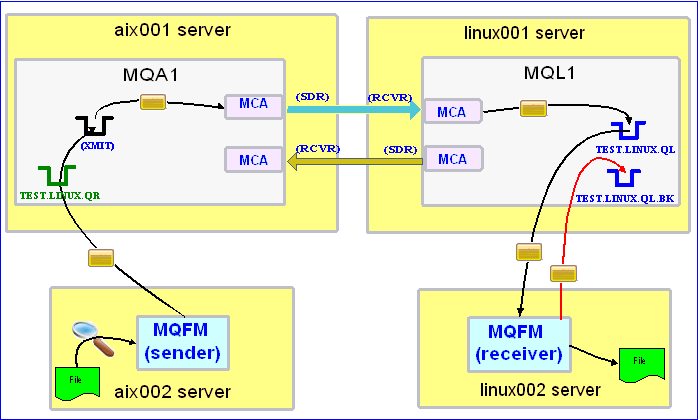

In this example, the following servers are used but they only have WebSphere MQ (WMQ) Client installed (no queue managers):
– aix002 is an AIX server with WMQ Client and MQFM software installed
– linux002 is a Linux server with WMQ Client and MQFM software installed

In this example, the following queue managers are used:
MQA1 is a queue manager residing on a AIX (aix001) server (sender)
MQL1 is a queue manager residing on a Linux (linux001) server (receiver)

TEST.LINUX.QL and TEST.LINUX.QL.BK are local queues defined in queue manager MQL1 (receiver)
TEST.LINUX.QR is a remote queue defined in queue manager MQA1 (sender)

If you do not know how to define/setup communication between 2 queue managers then follow the instructions in this blog posting:
http://www.capitalware.biz/rl_blog/?p=509

Step #1: On the linux002 server, create a file in the mq directory called mql1.xml and copy the following into the file:

<?xml version="1.0" encoding="ISO-8859-1"?>
<!DOCTYPE MQFM_MQ SYSTEM "MQFM_MQ.dtd">
<MQFM_MQ>
    <QMgrName>MQL1</QMgrName>
    <QueueName>TEST.LINUX.QL</QueueName>
    <Hostname>linux001</Hostname>
    <ChannelName>SYSTEM.DEF.SVRCONN</ChannelName>
    <Port>1414</Port>
    <UserID>tester</UserID>
</MQFM_MQ>

The mql1.xml (MQFM_MQ XML) file describes how to connect to the remote MQL1 queue manager on server linux001. The connection will use UserID of tester. If you do not have that UserID defined on the linux001 server then use a UserID that is defined.

Step #2: On the linux002 server, in the MQFM install directory, create a file called mqfm_receive_test_5.xml and copy the following into the file:

<?xml version="1.0" encoding="ISO-8859-1"?>
<!DOCTYPE MQFM_Workflow SYSTEM "MQFM_Workflow.dtd">
<MQFM_Workflow>

  <Actions>
    <Receive run="D" >
      <MQ>
        <MQFile>mql1.xml</MQFile>
        <BackOutQName>TEST.LINUX.QL.BK</BackOutQName>
      </MQ>
      <Default>
         <Directory override="Y">/home/roger/MQFM/</Directory>
      </Default>
    </Receive>
  </Actions>

</MQFM_Workflow>

When MQFM is started, it will run as a daemon (run=”D”) and use a backout queue called TEST.LINUX.QL.BK just in case there is an issue with a message. MQFM will override the message’s specified directory and use the one provided. Either create /home/roger/MQFM/ directory on your Linux server or use a directory that already exist on your Linux server.

Step #3: On the linux002 server, start MQFM to receive the file transfers:

./mqfm.sh mqfm_receive_test_5.xml &

Step #4: On the aix002 server, create a file in the mq directory called mqa1.xml and copy the following into the file:

<?xml version="1.0" encoding="ISO-8859-1"?>
<!DOCTYPE MQFM_MQ SYSTEM "MQFM_MQ.dtd">
<MQFM_MQ>
    <QMgrName>MQA1</QMgrName>
    <QueueName>TEST.LINUX.QR</QueueName>
    <Hostname>aix001</Hostname>
    <ChannelName>SYSTEM.DEF.SVRCONN</ChannelName>
    <Port>1414</Port>
    <UserID>tester</UserID>
</MQFM_MQ>

The mqa1.xml (MQFM_MQ XML) file describes how to connect to the remote MQA1 queue manager on server aix001. The connection will use UserID of tester. If you do not have that UserID defined on the aix001 server then use a UserID that is defined.

Step #5: On the AIX server, in the watch directory, create a file called watch_1.xml and copy the following into the file:

<?xml version="1.0" encoding="ISO-8859-1"?>
<!DOCTYPE MQFM_Watch SYSTEM "MQFM_Watch.dtd">

<MQFM_Watch>

  <PollInterval>15</PollInterval>

  <Watch type="D">
    <Directory>/appdata/mystuff/test</Directory>
    <Extension>txt</Extension>
    <Extension>dat</Extension>
  </Watch>

</MQFM_Watch>

The above MQFM_Watch XML file will tell MQFM to continuously (every 15 seconds) watch directory /appdata/mystuff/test/ for any files that arrive with the extensions of either ‘txt’ or ‘dat’. When either of these file types arrive, MQ File Mover will immediately send those files.

Step #6: On the AIX server, in the MQFM install directory, create a file called mqfm_watch_test_1.xml and copy the following into the file:

<?xml version="1.0" encoding="ISO-8859-1"?>
<!DOCTYPE MQFM_Workflow SYSTEM "MQFM_Workflow.dtd">
<MQFM_Workflow>

  <Actions>
    <Watch xmlfile="watch_1.xml" delete="N" format="N">
      <MQ>
        <MQFile>mqa1.xml</MQFile>
      </MQ>
      <Remote>
        <Directory>/var/mqm/</Directory>
      </Remote>
    </Watch>  
  </Actions>

</MQFM_Workflow>

When MQFM is started, the Watch Action will run forever. The MQ File Mover Watch Action will watch the specified directory for those items listed in the watch_1.xml file.

Step #7: On the aix002 server, start MQFM to begin monitoring for files:

./mqfm.sh mqfm_watch_test_1.xml &

MQFM will start, watch for files to arrive in the specified directory. Note: To stop the Watch Action, the user will need to use the Ctl-C or kill command.

Step #8: On the linux002 server, verify that the test file was put into the /home/roger/MQFM/ directory or whatever directory you specified in the mqfm_receive_test_5.xml file.

Step #9: Finally, we need to stop MQFM daemon that is running on the linux002 server. In the MQFM install directory, create a file called mqfm_putquit_test_5.xml and copy the following into the file:

<?xml version="1.0" encoding="ISO-8859-1"?>
<!DOCTYPE MQFM_Workflow SYSTEM "MQFM_Workflow.dtd">
<MQFM_Workflow>
  <Actions>
    <PutQuit>
      <MQ>
        <MQFile>mql1.xml</MQFile>
      </MQ>
    </PutQuit>
  </Actions>
</MQFM_Workflow>

Step #10: On the linux002 server, run MQFM with the PutQuit action:

./mqfm.sh mqfm_putquit_test_5.xml

This blog demonstrates how easy it is to watch a directory for files to arrive then immediately send the files using MQFM.

Remember, when possible, use the compression option for the Watch Action to speed up the transfer time and reduce the load placed on MQ You can combine both encryption and compression when sending files (any size) using MQFM.

Regards,
Roger Lacroix
Capitalware Inc.

Capitalware, IBM i (OS/400), IBM MQ, Java, Linux, macOS (Mac OS X), MQ File Mover, Open Source, Unix, Windows Comments Off on Watching a Directory and Sending Files with MQ File Mover (How To #5)

NASA launches code.nasa.gov

NASA just launched code.nasa.gov to “continue, unify, and expand NASA’s open source activities.”

You can browse NASA’s open source projects, the first 4 projects are now available:

  • OpenMDAO – a Multidisciplinary Design Analysis and Optimization framework written in Python
  • World Wind – a 3D interactive world viewer created by NASA’s Learning Technologies project
  • Vision Workbench – an image processing and computer vision library
  • Research Center StereoPipeline – automated tools for processing images captured from robotic explorers on other planets

And if you want to read about more cool projects at NASA (with user participation) then go to open.nasa.gov

Regards,
Roger Lacroix
Capitalware Inc.

Open Source Comments Off on NASA launches code.nasa.gov