Answers to Some Very Common MQ File Mover Questions

Q: Does MQ File Mover require Java?

Yes, MQ File Mover requires Java v1.5 or higher (no, it will not work with Java v1.3 or v1.4)


Q: Does MQ File Mover support platform XXX ?

MQ File Mover is supported on AIX, HP-UX, IBM i (OS/400), Linux, Mac OS X, Solaris and Windows (plus any other platform that supports Java v1.5 or higher)


Q: Can I send an extremely large file with MQ File Mover?

Yes, MQ File Mover can send a file of any size and yes, it uses MQ’s message segmentation for large files


Q: Can MQ File Mover monitor a directory for incoming files then send the files?

Yes, MQ File Mover can monitor a directory for files – see Watch Action


Q: Do I need MQ installed on the server?

Yes, MQ File Mover requires MQ to be installed along with the MQ/Java component (yes, you can cheat and only copy the MQ JAR files)


Q: Can MQ File Mover send files to different queues?

Yes, each Send or Watch Actions can specify different target queues


Q: Can I run more than 1 MQ File Mover Receive Action at the same time?

Yes, you can run more than 1 Receive Action as a daemon (Unix/Linux) or Windows service (Windows) on the same server

Regards,
Roger Lacroix
Capitalware Inc.

Capitalware, IBM i (OS/400), IBM MQ, Java, Linux, macOS (Mac OS X), MQ File Mover, Open Source, Unix, Windows Comments Off on Answers to Some Very Common MQ File Mover Questions

Sending Extremely Large Files with MQ File Mover (How To #4)

In this blog posting, I will show you how to send an extremely large file (i.e. 1GB) when connecting to the queue manager in “client mode”. From a user’s perspective, sending a 1GB file is done exactly the same way as sending a 1KB file.

For files greater than 4MB, MQFM’s Send and Watch Actions use MQ’s segmentation feature. The large file is broken up into segments and send via MQ. The Receive Action will get and write each message segment to the target file.

If the message data does not need to be converted between platforms, then I strongly suggest that MQFM’s compression feature be used on the Send and/or Watch Actions. Using compression will cause the messages to move through your MQ environment faster and use less resources. Depending on the original file contents, the compression may achieve 5 to 1 compression or as high as 40 to 1 compression ratio.

Note: You can combine both encryption and compression when sending files using MQFM.
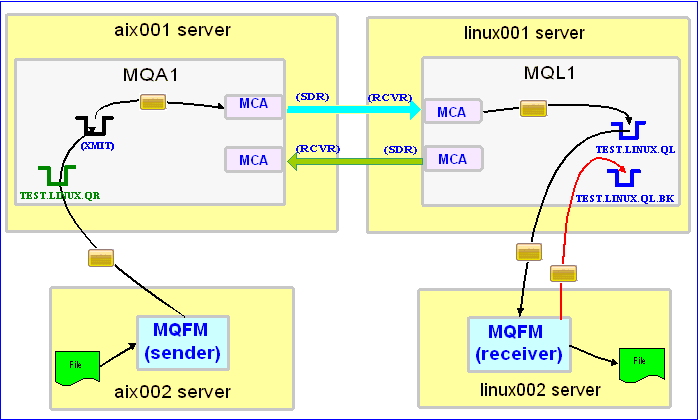

In this example, the following servers are used but they only have WebSphere MQ (WMQ) Client installed (no queue managers):
– aix002 is an AIX server with WMQ Client and MQFM software installed
– linux002 is a Linux server with WMQ Client and MQFM software installed

In this example, the following queue managers are used:
MQA1 is a queue manager residing on a AIX (aix001) server (sender)
MQL1 is a queue manager residing on a Linux (linux001) server (receiver)

TEST.LINUX.QL and TEST.LINUX.QL.BK are local queues defined in queue manager MQL1 (receiver)
TEST.LINUX.QR is a remote queue defined in queue manager MQA1 (sender)

If you do not know how to define/setup communication between 2 queue managers then follow the instructions in this blog posting:
http://www.capitalware.biz/rl_blog/?p=509

Step #1: On the linux002 server, create a file in the mq directory called mql1.xml and copy the following into the file:

<?xml version="1.0" encoding="ISO-8859-1"?>
<!DOCTYPE MQFM_MQ SYSTEM "MQFM_MQ.dtd">
<MQFM_MQ>
    <QMgrName>MQL1</QMgrName>
    <QueueName>TEST.LINUX.QL</QueueName>
    <Hostname>linux001</Hostname>
    <ChannelName>SYSTEM.DEF.SVRCONN</ChannelName>
    <Port>1414</Port>
    <UserID>tester</UserID>
</MQFM_MQ>

The mql1.xml (MQFM_MQ XML) file describes how to connect to the remote MQL1 queue manager on server linux001. The connection will use UserID of tester. If you do not have that UserID defined on the linux001 server then use a UserID that is defined.

Step #2: On the linux002 server, in the MQFM install directory, create a file called mqfm_receive_test_4.xml and copy the following into the file:

<?xml version="1.0" encoding="ISO-8859-1"?>
<!DOCTYPE MQFM_Workflow SYSTEM "MQFM_Workflow.dtd">
<MQFM_Workflow>

  <Actions>
    <Receive run="D" >
      <MQ>
        <MQFile>mql1.xml</MQFile>
        <BackOutQName>TEST.LINUX.QL.BK</BackOutQName>
      </MQ>
      <Default>
         <Directory override="Y">/home/roger/MQFM/</Directory>
      </Default>
    </Receive>
  </Actions>

</MQFM_Workflow>

When MQFM is started, it will run as a daemon (run=”D”) and use a backout queue called TEST.LINUX.QL.BK just in case there is an issue with a message. MQFM will override the message’s specified directory and use the one provided. Either create /home/roger/MQFM/ directory on your Linux server or use a directory that already exist on your Linux server.

Note: There were no options specified for MQFM’s Receive Action to use the decompression feature. The Receive Action will automatically detect if the incoming message has been compressed or not and take the appropriate action.

Step #3: On the linux002 server, start MQFM to receive the file transfers:

./mqfm.sh mqfm_receive_test_4.xml &

Step #4: On the aix002 server, in the mq directory, create a file called mqa1.xml and copy the following into the file:

<?xml version="1.0" encoding="ISO-8859-1"?>
<!DOCTYPE MQFM_MQ SYSTEM "MQFM_MQ.dtd">
<MQFM_MQ>
    <QMgrName>MQA1</QMgrName>
    <QueueName>TEST.LINUX.QR</QueueName>
    <Hostname>aix001</Hostname>
    <ChannelName>SYSTEM.DEF.SVRCONN</ChannelName>
    <Port>1414</Port>
    <UserID>tester</UserID>
</MQFM_MQ>

The mqa1.xml (MQFM_MQ XML) file describes how to connect to the remote MQA1 queue manager on server aix001. The connection will use UserID of tester. If you do not have that UserID defined on the aix001 server then use a UserID that is defined.

Step #5: On the aix002 server, I have a file called giant_test.txt that is 1GB (1024MB) in size. Use your own extremely large file or create an extremely large file called giant_test.txt.

Step #6: On the AIX server, in the MQFM install directory, create a file called mqfm_send_test_4.xml and copy the following into the file:

<?xml version="1.0" encoding="ISO-8859-1"?>
<!DOCTYPE MQFM_Workflow SYSTEM "MQFM_Workflow.dtd">
<MQFM_Workflow>

  <Actions>
    <Send delete="N" format="Z" >
      <File>data/giant_test.txt</File>
      <MQ>
        <MQFile>mqa1.xml</MQFile>
      </MQ>
      <Remote>
        <Directory>/var/mqm/</Directory>
      </Remote>
    </Send>
  </Actions>

</MQFM_Workflow>

When MQFM is started, it will determine that it needs to use MQ’s segmentation feature. In the Send Action above, I have used the compress feature (format=”Z”), hence, before a message segment is sent, MQFM will compress the message segment.

Step #7: On the aix002 server, start MQFM to send the file:

./mqfm.sh mqfm_send_test_4.xml

MQFM will start, put the message segments to the specified queue then terminate.

Step #8: On the linux002 server, verify that the test file (i.e. giant_test.txt or whatever you called it) was put into the /home/roger/MQFM/ directory or whatever directory you specified in the mqfm_receive_test_4.xml file.

Step #9: Finally, we need to stop MQFM daemon that is running on the linux002 server. In the MQFM install directory, create a file called mqfm_putquit_test_4.xml and copy the following into the file:

<?xml version="1.0" encoding="ISO-8859-1"?>
<!DOCTYPE MQFM_Workflow SYSTEM "MQFM_Workflow.dtd">
<MQFM_Workflow>
  <Actions>
    <PutQuit>
      <MQ>
        <MQFile>mql1.xml</MQFile>
      </MQ>
    </PutQuit>
  </Actions>
</MQFM_Workflow>

Step #10: On the linux002 server, run MQFM with the PutQuit action:

./mqfm.sh mqfm_putquit_test_4.xml

This blog demonstrates how easy it is to send an extremely large file using MQFM. Remember, when possible, use the compression option for the Send and/or Watch Actions and you can combine both encryption and compression when sending files (any size) using MQFM.

Regards,
Roger Lacroix
Capitalware Inc.

Capitalware, IBM i (OS/400), IBM MQ, Java, Linux, macOS (Mac OS X), MQ File Mover, Open Source, Unix, Windows Comments Off on Sending Extremely Large Files with MQ File Mover (How To #4)

HP to Contribute webOS to Open Source

HP today announced it will contribute the webOS software to the open source community.
http://www.hp.com/hpinfo/newsroom/press/2011/111209xa.html?mtxs=rss-corp-news

Look at that, wishes do come true. 🙂

Regards,
Roger Lacroix
Capitalware Inc.
Open Source Comments Off on HP to Contribute webOS to Open Source

IBM Releases Open Source EGL Development Tools

IBM announced the release of a new set of Open Source development tools based on their EGL programming language.
https://www.ibm.com/developerworks/mydeveloperworks/blogs/3e2b35ae-d3b1-4008-adee-2b31d4be5c92/entry/the_open_era_for_egl_begins_today?lang=en

Regards,
Roger Lacroix
Capitalware Inc.

Open Source Comments Off on IBM Releases Open Source EGL Development Tools

Microsoft Can Remotely Kill Purchased Apps

Here’s another head-shaking story (what’s mine is mine and what’s yours is yours unless MS says no):
http://www.pcmag.com/article2/0,2817,2397414,00.asp

Regards,
Roger Lacroix
Capitalware Inc.

Windows Comments Off on Microsoft Can Remotely Kill Purchased Apps

End-To-End Encryption with MQ File Mover (How To #3)

In the MQ File Mover (MQFM) How To #2 blog posting, MQFM ran in “client mode” when it connected to the queue managers. In this blog posting, I will show how to implement a simple file transfer using End-To-End encryption when connecting to the queue manager in “client mode”.

MQFM’s Send and Watch Actions use Advanced Encryption Standard (AES) to encrypt the data. The Receive Action can decrypt the incoming data before it is written to the target file. MQFM supports the use of 128, 192 and 256-bit AES encryption/decryption.

US export restrictions limit the Java AES support to 128-bits. If the user wishes to use AES 192 or 256-bit encryption then “Java Cryptography Extension (JCE) Unlimited Strength Jurisdiction Policy Files 6” needs to be downloaded (and installed) from Oracle’s Java web page: http://www.oracle.com/technetwork/java/javase/downloads/index.html


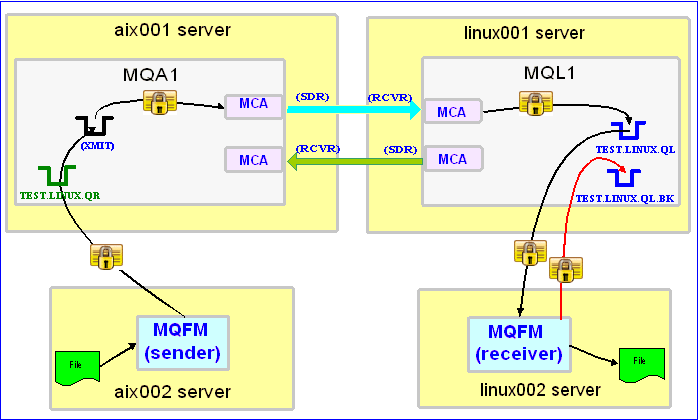
In this example, the following servers are used but they only have WebSphere MQ (WMQ) Client installed (no queue managers):
– aix002 is an AIX server with WMQ Client and MQFM software installed
– linux002 is a Linux server with WMQ Client and MQFM software installed

In this example, the following queue managers are used:
MQA1 is a queue manager residing on a AIX (aix001) server (sender)
MQL1 is a queue manager residing on a Linux (linux001) server (receiver)

TEST.LINUX.QL and TEST.LINUX.QL.BK are local queues defined in queue manager MQL1 (receiver)
TEST.LINUX.QR is a remote queue defined in queue manager MQA1 (sender)

If you do not know how to define/setup communication between 2 queue managers then follow the instructions in this blog posting:
http://www.capitalware.biz/rl_blog/?p=509

Step #1: On the linux002 server, create a file in the mq directory called mql1.xml and copy the following into the file:


    MQL1
    TEST.LINUX.QL
    linux001
    SYSTEM.DEF.SVRCONN
    1414
    tester

The mql1.xml (MQFM_MQ XML) file describes how to connect to the remote MQL1 queue manager on server linux001. The connection will use UserID of tester. If you do not have that UserID defined on the linux001 server then use a UserID that is defined.

Step #2: On the linux002 server, in the MQFM install directory, create a file called mqfm_receive_test_3.xml and copy the following into the file:


        mql1.xml
        TEST.LINUX.QL.BK
      
      
         /home/roger/MQFM/


When MQFM is started, it will run as a daemon (run=”D”) and use a backout queue called TEST.LINUX.QL.BK just in case there is an issue with a message. For decrypting the data, MQFM will use a key size of 128-bit and a PassPhrase of ‘this is the secret’. MQFM will override the message’s specified directory and use the one provided. Either create /home/roger/MQFM/ directory on your Linux server or use a directory that already exist on your Linux server.

Step #3: On the linux002 server, start MQFM to receive the file transfers:

./mqfm.sh mqfm_receive_test_3.xml &

Step #4: On the aix002 server, create a file in the mq directory called mqa1.xml and copy the following into the file:


    MQA1
    TEST.LINUX.QR
    aix001
    SYSTEM.DEF.SVRCONN
    1414
    tester

The mqa1.xml (MQFM_MQ XML) file describes how to connect to the remote MQA1 queue manager on server aix001. The connection will use UserID of tester. If you do not have that UserID defined on the aix001 server then use a UserID that is defined.

Step #5: On the aix002 server, create a file in the data directory called test.txt and put a simple text message in the file (i.e. This is a test message.)

Step #6: On the AIX server, in the MQFM install directory, create a file called mqfm_send_test_3.xml and copy the following into the file:


      data/test.txt
      
        mqa1.xml
      
      
        /var/mqm/


When MQFM is started, first it will encrypt the data using a key size of 128-bit and a PassPhrase of ‘this is the secret’ then MQFM will send the encrypted data.

Step #7: On the aix002 server, start MQFM to send the file:

./mqfm.sh mqfm_send_test_3.xml

MQFM will start, encrypted the data and put the encrpyted message to the specified queue then terminate.

Step #8: On the linux002 server, verify that the test file (i.e. test.txt) was put into the /home/roger/MQFM/ directory or whatever directory you specified in the mqfm_receive_test_3.xml file.

Step #9: Finally, we need to stop MQFM daemon that is running on the linux002 server. In the MQFM install directory, create a file called mqfm_putquit_test_3.xml and copy the following into the file:


        mql1.xml


Step #10: On the linux002 server, run MQFM with the PutQuit action:

./mqfm.sh mqfm_putquit_test_3.xml

This blog demonstrates how to perform End-To-End encryption using MQFM at both the sender and receiver ends as MQ clients that connect to remote queue managers. You do NOT need to implement SSL or purchase SSL certificates to have secure End-To-End encryption. Besides, implementing the headache of SSL does absolutely nothing for messages sitting in the queue because SSL is only for encrypting data as it crosses the channel. MQFM provides true End-To-End encryption of the data.

Regards,
Roger Lacroix
Capitalware Inc.

Capitalware, IBM i (OS/400), IBM MQ, Java, Linux, macOS (Mac OS X), MQ File Mover, Open Source, Security, Unix, Windows 1 Comment

NoSQL 101

If you are interested in learning about NoSQL, then have a look at 4 NoSQL presentations given by Dan McCreary.

Part One: http://www.dataversity.net/archives/6548

Part Two: http://www.dataversity.net/archives/6590

Part Three: http://www.dataversity.net/archives/6623

Part Four: http://www.dataversity.net/archives/6789

These presentations were given at the NoSQL Now! 2011 Conference in San Jose, California in August 2011.

Regards,
Roger Lacroix
Capitalware Inc.

Database, Open Source Comments Off on NoSQL 101

New: MQ Batch Toolkit v2.0.0

Capitalware Inc. would like to announce the official release of MQ Batch Toolkit v2.0.0. MQ Batch Toolkit allows users to manipulate, monitor and manage messages in a queue of a WebSphere MQ (formally MQSeries) queue manager from a command-line or shell scripting environment.

For more information about MQ Batch Toolkit go to:
https://www.capitalware.com/mqbt_overview.html

    Changes for MQ Batch Toolkit v2.0.0:

  • Major rewrite of the command-line option processing.
  • Major rewrite of the internal message processing engine.
  • Added SendEmail function to get one or more messages from a queue and send each MQ message as an email message (via SMTP).
  • Added GetEmail function to retrieve one or more email messages (via POP) and put each email message as an MQ message to an MQ queue.
  • Added Report function to generate a formatted document containing one of more messages. The formatted can be a PDF, RTF or HTML file.
  • Added ‘-i’ parameter to the Insert, Import, PutServer, SIMClient and SIMServer functions that specifies a file with the MQMD values.
  • Added “-X” parameter to the Copy and Forward functions to remove any MQ headers during the export process.
  • Updated the MQBT and MQBT64 shell scripts to support IBM i (OS/400)
  • Updated docs (English only)
  • Regards,
    Roger Lacroix
    Capitalware Inc.

Capitalware, IBM i (OS/400), IBM MQ, Java, Linux, macOS (Mac OS X), MQ Batch Toolkit, Unix, Windows Comments Off on New: MQ Batch Toolkit v2.0.0

SupportPac MS0T v7.0.1.7 and v7.1.0.0 Released

IBM has released version 7.0.1.7 and 7.1.0.0 of SupportPac MS0T.
http://www.ibm.com/support/docview.wss?rs=171&uid=swg24021041&loc=en_US&cs=utf-8&lang=en

    Changes:

  • Updated for v7.1
  • Updated for v7.0.1.7

SupportPac MS0T (MQ Explorer) is a graphical configuration tool built on Eclipse which enables you to remotely explore and configure all WebSphere MQ objects and resources, including Java Message Service (JMS), and publish and subscribe.

Regards,
Roger Lacroix
Capitalware Inc.

IBM MQ, Linux, Windows Comments Off on SupportPac MS0T v7.0.1.7 and v7.1.0.0 Released

WebSphere MQ Fix Pack 7.0.1.7 Released

IBM has just released FixPack 7.0.1.7 for WebSphere MQ.
http://www.ibm.com/support/docview.wss?rs=171&uid=swg24030911

Regards,
Roger Lacroix
Capitalware Inc.

Fix Packs for MQ, IBM i (OS/400), IBM MQ, Linux, Unix, Windows Comments Off on WebSphere MQ Fix Pack 7.0.1.7 Released