Time for a New Laptop

For months, I have been looking at different laptops but none fit the bill (a small, light, fast laptop for a developer – yes, I want it all!!). Every time I found a potential laptop candidate , it would have a lousy screen resolution (i.e. 1366×768). My kids suggested (many times) that I get a MacBook Air. A perfect laptop except I cannot do MQ development on Mac OS X, I need either Windows or Linux laptop. Yes, I could dual-boot it but then I have purchase Win7 and I would lose hard drive space to both operating systems.

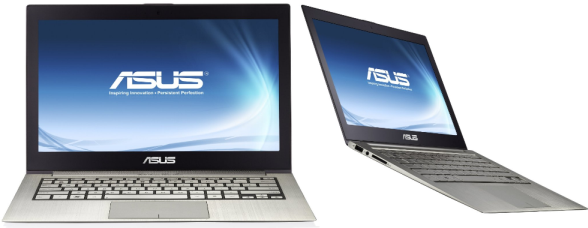
Back in early October, I read a review about a new ASUS ZenBook that is a MacBook Air clone. The specifics for the ASUS ZenBook looked great, in particular, I really liked UX31E-DH72 model but nobody had it. The Canadian retailers web sites listed as it being available at the end of November. 🙁

Being Canadian, the US Thankgiving/Black Friday is meaningless to us but it is a great excuse to travel to the US, have a vacation and do some shopping. 🙂 One of the places I like to go to when I am in Michigan, is Micro Center in Madison Heights. While looking around in Micro Center, I decided to ask if they had any ASUS ZenBook in stock, in particular the UX31E-DH72 model, and the sales rep said yes. He went and retrieved it from the back, opened it and handed it to me. It was awesome. 🙂 And it never left my hands. Sadly, it was not on sale, so I had to pay $1449.00.


ASUS UX31E-DH72 is small, light and fast. Here are the specs:
– 13.3-inch display (1600×900 pixels)
– Intel Core i7-2677M
– 4GB RAM
– 256GB SSD
– Bluetooth 4.0
– USB 3.0 port
– Wireless 802.11bgn
– Includes an USB to Ethernet dongle
– Multi-Touch mouse pad
– Weight is 1.29 kilograms (2.86 pounds)

I have only had the laptop for a few days, but so far, 2 great big thumbs up from me. 🙂

Regards,
Roger Lacroix
Capitalware Inc.

Capitalware, Windows 5 Comments

Simple File Transfer using MQ File Mover (How To #2)

In the MQ File Mover (MQFM) How To #1 blog posting, MQFM ran in “bindings mode” when it connected to the queue managers. In this blog posting, I will show how to do the same simple file transfer but in “client mode” when MQFM connects to the queue managers. Client mode connectivity means that the queue manager resides on a different server than the client application (i.e. MQFM).
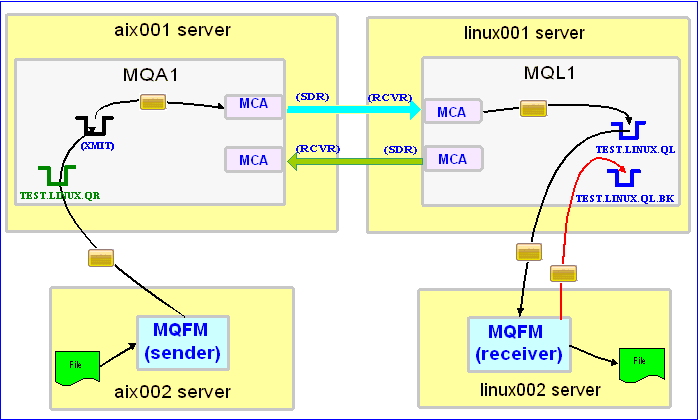

In this example, the following servers are used but they only have WebSphere MQ (WMQ) Client installed (no queue managers):
– aix002 is an AIX server with WMQ Client and MQFM software installed
– linux002 is a Linux server with WMQ Client and MQFM software installed

In this example, the following queue managers are used:
MQA1 is a queue manager residing on a AIX (aix001) server (sender)
MQL1 is a queue manager residing on a Linux (linux001) server (receiver)

TEST.LINUX.QL and TEST.LINUX.QL.BK are local queues defined in queue manager MQL1 (receiver)
TEST.LINUX.QR is a remote queue defined in queue manager MQA1 (sender)

If you do not know how to define/setup communication between 2 queue managers then follow the instructions in this blog posting:
http://www.capitalware.biz/rl_blog/?p=509

Step #1: On the linux002 server, create a file in the mq directory called mql1.xml and copy the following into the file:

<?xml version="1.0" encoding="ISO-8859-1"?>
<!DOCTYPE MQFM_MQ SYSTEM "MQFM_MQ.dtd">
<MQFM_MQ>
    <QMgrName>MQL1</QMgrName>
    <QueueName>TEST.LINUX.QL</QueueName>
    <Hostname>linux001</Hostname>
    <ChannelName>SYSTEM.DEF.SVRCONN</ChannelName>
    <Port>1414</Port>
    <UserID>tester</UserID>
</MQFM_MQ>

The mql1.xml (MQFM_MQ XML) file describes how to connect to the remote MQL1 queue manager on server linux001. The connection will use UserID of tester. If you do not have that UserID defined on the linux001 server then use a UserID that is defined.

Step #2: On the linux002 server, in the MQFM install directory, create a file called mqfm_receive_test_2.xml and copy the following into the file:

<?xml version="1.0" encoding="ISO-8859-1"?>
<!DOCTYPE MQFM_Workflow SYSTEM "MQFM_Workflow.dtd">
<MQFM_Workflow>

  <Actions>
    <Receive getwithconvert="Y" run="D">
      <MQ>
        <MQFile>mql1.xml</MQFile>
        <BackOutQName>TEST.LINUX.QL.BK</BackOutQName>
      </MQ>
      <Default>
         <Directory override="Y">/home/roger/MQFM/</Directory>
      </Default>
    </Receive>
  </Actions>

</MQFM_Workflow>

When MQFM is started, it will run as a daemon (run=”D”) and use a backout queue called TEST.LINUX.QL.BK just in case there is an issue with a message. MQFM will use ‘get with convert’ option when retrieving the messages. MQFM will override the message’s specified directory and use the one provided. Either create /home/roger/MQFM/ directory on your Linux server or use a directory that already exist on your Linux server.

Step #3: On the linux002 server, start MQFM to receive the file transfers:

./mqfm.sh mqfm_receive_test_2.xml &

Step #4: On the aix002 server, create a file in the mq directory called mqa1.xml and copy the following into the file:

<?xml version="1.0" encoding="ISO-8859-1"?>
<!DOCTYPE MQFM_MQ SYSTEM "MQFM_MQ.dtd">
<MQFM_MQ>
    <QMgrName>MQA1</QMgrName>
    <QueueName>TEST.LINUX.QR</QueueName>
    <Hostname>aix001</Hostname>
    <ChannelName>SYSTEM.DEF.SVRCONN</ChannelName>
    <Port>1414</Port>
    <UserID>tester</UserID>
</MQFM_MQ>

The mqa1.xml (MQFM_MQ XML) file describes how to connect to the remote MQA1 queue manager on server aix001. The connection will use UserID of tester. If you do not have that UserID defined on the aix001 server then use a UserID that is defined.

Step #5: On the aix002 server, create a file in the data directory called test.txt and put a simple text message in the file (i.e. This is a test message.)

Step #6: On the AIX server, in the MQFM install directory, create a file called mqfm_send_test_2.xml and copy the following into the file:

<?xml version="1.0" encoding="ISO-8859-1"?>
<!DOCTYPE MQFM_Workflow SYSTEM "MQFM_Workflow.dtd">
<MQFM_Workflow>

  <Actions>
    <Send delete="N" format="S">
      <File>data/test.txt</File>
      <MQ>
        <MQFile>mqa1.xml</MQFile>
      </MQ>
      <Remote>
        <Directory>/var/mqm/</Directory>
      </Remote>
    </Send>
  </Actions>

</MQFM_Workflow>

When MQFM is started, it will send the specified file and mark the message’s MQMD format as ‘string’.

Step #7: On the aix002 server, start MQFM to send the file:

./mqfm.sh mqfm_send_test_2.xml

MQFM will start and put the file as a message to the specified queue then terminate.

Step #8: On the linux002 server, verify that the test file (i.e. test.txt) was put into the /home/roger/MQFM/ directory or whatever directory you specified in the mqfm_receive_test_2.xml file.

Step #9: Finally, we need to stop MQFM daemon that is running on the linux002 server. In the MQFM install directory, create a file called mqfm_putquit_test_2.xml and copy the following into the file:

<?xml version="1.0" encoding="ISO-8859-1"?>
<!DOCTYPE MQFM_Workflow SYSTEM "MQFM_Workflow.dtd">
<MQFM_Workflow>
  <Actions>
    <PutQuit>
      <MQ>
        <MQFile>mql1.xml</MQFile>
      </MQ>
    </PutQuit>
  </Actions>
</MQFM_Workflow>

Step #10: On the linux002 server, run MQFM with the PutQuit action:

./mqfm.sh mqfm_putquit_test_2.xml

This blog demonstrates how to use MQFM at both the sender and receiver ends as MQ clients that connect to remote queue managers.

Regards,
Roger Lacroix
Capitalware Inc.

Capitalware, IBM i (OS/400), IBM MQ, Java, Linux, macOS (Mac OS X), MQ File Mover, Open Source, Unix, Windows Comments Off on Simple File Transfer using MQ File Mover (How To #2)

Simple File Transfer using MQ File Mover (How To #1)

I get asked on a regular basis how to do a simple MQ File Mover (MQFM) setup on 2 servers. It is actually very straight forward and I will run through an example in this blog posting.


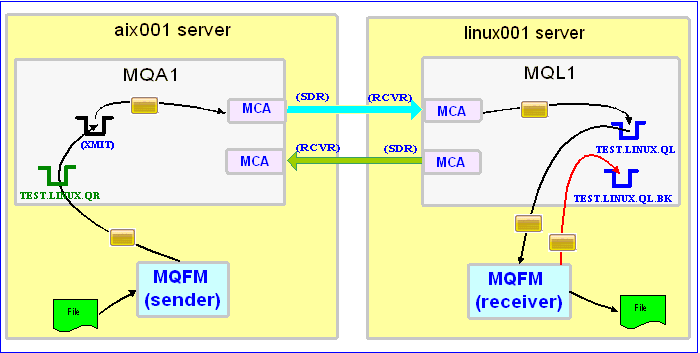
In this example, the following servers are used:
– aix001 is an AIX server with WMQ Server and MQFM software installed
– linux001 is a Linux server with WMQ Server and MQFM software installed

In this example, the following queue managers are used:
MQA1 is a queue manager residing on a AIX (aix001) server (sender)
MQL1 is a queue manager residing on a Linux (linux001) server (receiver)

TEST.LINUX.QL and TEST.LINUX.QL.BK are local queues defined in queue manager MQL1 (receiver)
TEST.LINUX.QR is a remote queue defined in queue manager MQA1 (sender)

If you do not know how to define/setup communication between 2 queue managers then follow the instructions in this blog posting:
http://www.capitalware.biz/rl_blog/?p=509

Step #1: On the Linux server, in the MQFM install directory, create a file called mqfm_receive_test_1.xml and copy the following into the file:

<?xml version="1.0" encoding="ISO-8859-1"?>
<!DOCTYPE MQFM_Workflow SYSTEM "MQFM_Workflow.dtd">
<MQFM_Workflow>

  <Actions>
    <Receive getwithconvert="Y" run="D">
      <MQ>
        <QMgrName>MQL1</QMgrName>
        <QueueName>TEST.LINUX.QL</QueueName>
        <BackOutQName>TEST.LINUX.QL.BK</BackOutQName>
      </MQ>
      <Default>
         <Directory override="Y">/home/roger/MQFM/</Directory>
      </Default>
    </Receive>
  </Actions>

</MQFM_Workflow>

When MQFM is started, it will run as a daemon (run=”D”) and use a backout queue called TEST.LINUX.QL.BK just in case there is an issue with a message. MQFM will use ‘get with convert’ option when retrieving the messages. MQFM will override the message’s specified directory and use the one provided. Either create /home/roger/MQFM/ directory on your Linux server or use a directory that already exist on your Linux server.

Step #2: On the Linux server, start MQFM to receive the file transfers:

./mqfm.sh mqfm_receive_test_1.xml &

Step #3: On the AIX server, create a file in the data directory called test.txt and put a simple text message in the file (i.e. This is a test message.)

Step #4: On the AIX server, in the MQFM install directory, create a file called mqfm_send_test_1.xml and copy the following into the file:

<?xml version="1.0" encoding="ISO-8859-1"?>
<!DOCTYPE MQFM_Workflow SYSTEM "MQFM_Workflow.dtd">
<MQFM_Workflow>

  <Actions>
    <Send delete="N" format="S">
      <File>data/test.txt</File>
      <MQ>
        <QMgrName>MQA1</QMgrName>
        <QueueName>TEST.LINUX.QR</QueueName>
      </MQ>
      <Remote>
        <Directory>/var/mqm/</Directory>
      </Remote>
    </Send>
  </Actions>

</MQFM_Workflow>

When MQFM is started, it will send the specified file and mark the message’s MQMD format as ‘string’.

Step #5: On the AIX server, start MQFM to send the file:

./mqfm.sh mqfm_send_test_1.xml

MQFM will start and put the file as a message to the specified queue then terminate.

Step #6: On the Linux server, verify that the test file (i.e. test.txt) was put into the /home/roger/MQFM/ directory or whatever directory you specified in the mqfm_receive_test_1.xml file.

Step #7: Finally, we need to stop MQFM daemon that is running on the Linux server. In the MQFM install directory, create a file called mqfm_putquit_test_1.xml and copy the following into the file:

<?xml version="1.0" encoding="ISO-8859-1"?>
<!DOCTYPE MQFM_Workflow SYSTEM "MQFM_Workflow.dtd">
<MQFM_Workflow>
  <Actions>
    <PutQuit>
      <MQ>
        <QMgrName>MQL1</QMgrName>
        <QueueName>TEST.Q1.QL</QueueName>
      </MQ>
    </PutQuit>
  </Actions>
</MQFM_Workflow>

Step #8: On the Linux server, run MQFM with the PutQuit action:

./mqfm.sh mqfm_putquit_test_1.xml

Hopefully, that will help new users of MQFM to get up and running in minutes. In the future, I will post more complex MQFM examples.

Regards,
Roger Lacroix
Capitalware Inc.
Capitalware, IBM i (OS/400), IBM MQ, Java, Linux, macOS (Mac OS X), MQ File Mover, Open Source, Unix, Windows Comments Off on Simple File Transfer using MQ File Mover (How To #1)

OpenSUSE 12.1 Released

OpenSUSE has just released OpenSUSE v12.1.
http://news.opensuse.org/2011/11/16/opensuse-12-1-all-green/

openSUSE is a free and Linux-based operating system for your PC, Laptop or Server. You can surf the web, manage your e-mails and photos, do office work, play videos or music and have a lot of fun!

Regards,
Roger Lacroix
Capitalware Inc.
Linux, Open Source, Operating Systems Comments Off on OpenSUSE 12.1 Released

New: MQ File Mover v4.0.0

Capitalware is pleased to announce the release of MQ File Mover v4.0.0. It is a free open source project.

MQ File Mover is a managed file transfer solution that facilitates the transfer of files using IBM’s WebSphere MQ (aka MQSeries). MQFM processes “Action” commands which are controlled through an MQFM Workflow XML file. The user combines a series of Action commands to create the MQFM Workflow XML file.

    Changes:

  • Added support for unlimited file size for Send, Receive and Watch Actions
  • Added support for sending the file to a single queue or to multiple queues for Send and Watch Actions
  • Added support for end-to-end encryption:
    • Enhanced Send and Watch Actions to have the ability to encrypt a message with AES 128, 192 or 256-bit.
    • Enhanced Receive Action to have the ability to decrypt a message with AES 128, 192 or 256-bit.
  • Added support for file locking when reading and writing to/from a file.
  • All Actions now have an “On Error Fail” flag.
  • Added a DecryptFile Action to decrypt a file with AES 128, 192 or 256-bit.
  • Added a EncryptFile Action to encrypt a file with AES 128, 192 or 256-bit.
  • Added an If/Else Action to perform a conditional test against an Action’s variable
  • Added a Launch Action to invoke an MQFM Workflow XML file.
  • Added a Merge Action to merge 2 or more files into a target file
  • Added a MergeSort Action to merge 2 or more files and sort the results into a target file
  • Added a ReplaceText Action to perform a search and replace of text on a file.
  • Added a Schedule Action to invoke an MQFM Workflow XML file at a specific date and/or time.
  • Added a SendEmail Action to send an email to 1 or more recipients.
  • Added a Sleep Action to pause the Workflow.
  • Added a Sort Action to sort a file into a target file
  • Added a Touch Action to set the modification time of the file to the current time of day. If the file doesn’t exist, it is created.
  • Added a Tar Action to create a tar archive from the contents of a file or files in a directory.
  • Added an UnTar Action to extract the contents of a tar archive to a directory.
  • Added an UnZip Action to extract the contents of a zip archive to a directory.
  • Added support for custom logging.
  • Fixed an issue with “dir” attribute of File element of Watch element

For more information on MQ File Mover, please go to:
http://www.capitalware.biz/mqfm_overview.html

Regards,
Roger Lacroix
Capitalware Inc.

Capitalware, IBM i (OS/400), IBM MQ, Java, Linux, macOS (Mac OS X), MQ File Mover, Open Source, Unix, Windows Comments Off on New: MQ File Mover v4.0.0

Content Removed

Content Removed

Capitalware Comments Off on Content Removed

Solaris 11 Released

Oracle has just released Solaris v11.
http://www.techworld.com.au/article/406990/oracle_solaris_goes_11

Oracle Solaris provides innovative, built-in features that deliver breakthrough high availability, advanced security, efficiency, and industry-leading scalability/performance to help businesses grow. Oracle Solaris is supported and fully optimized for SPARC and x86, the industry’s two leading enterprise architectures.

Regards,
Roger Lacroix
Capitalware Inc.

Operating Systems, Unix Comments Off on Solaris 11 Released

Fedora 16 Released

Fedora Project Contributors has just released Fedora v16.
http://docs.fedoraproject.org/en-US/Fedora/16/html/Release_Notes/index.html

Fedora is a Linux-based operating system, a suite of software that makes your computer run. You can use the Fedora operating system to replace or to run alongside of other operating systems such as Microsoft Windows or Mac OS X. The Fedora operating system is 100% free of cost for you to enjoy and share.

Regards,
Roger Lacroix
Capitalware Inc.

Linux, Open Source, Operating Systems Comments Off on Fedora 16 Released

freshmeat.net is now called freecode.com

Patrick Lenz of freshmeat.net has announced a name change:
http://freecode.com/articles/whats-in-a-name

Regards,
Roger Lacroix
Capitalware Inc.

Open Source Comments Off on freshmeat.net is now called freecode.com

SupportPac MS03 v6.1.4.0 Released

Geoff Winn of IBM has released version 6.1.4.0 of SupportPac MS03.
https://www.ibm.com/support/docview.wss?q1=mA1J&rs=171&uid=swg24000673

    Changes:

  • On iSeries *SYSTEM generated rather than +system.
  • Add switch to require NOSYNC for all MQGETs.
  • Add switch to disable save of subscriptions.
  • Fixed a small number of defects.

SupportPac MS03 saves all of the objects, such as queues, channels, etc, defined in either a local or remote queue manager, to a file.

Regards,
Roger Lacroix
Capitalware Inc.

IBM i (OS/400), IBM MQ, Linux, Unix, Windows Comments Off on SupportPac MS03 v6.1.4.0 Released