$1M To Solve Beal Conjecture

Andrew Beal Offers $1 Million To Solve His Math Problem, Beal Conjecture Remains Unsolved Since 1980s:
http://www.ibtimes.com/andrew-beal-offers-1-million-solve-his-math-problem-beal-conjecture-remains-unsolved-1980s-1292837

Beal’s Conjecture: If Ax + By = Cz, where A, B, C, x, y and z are positive integers and x, y and z are all greater than 2, then A, B and C must have a common prime factor.

Here is a complete description of the Beal’s Conjecture:
http://www.bealconjecture.com

Regards,
Roger Lacroix
Capitalware Inc.

Education Comments Off on $1M To Solve Beal Conjecture

Mark Taylor and Morag Hughson Sessions at MQTC

I received the list of sessions for Mark Taylor and Morag Hughson.

Here are Mark Taylor’s sessions:

  • What’s New in WebSphere MQ
  • Extending the MQ Explorer
  • WebSphere MQ Disaster Recovery
  • WebSphere MQ Internals, Performance and Tuning for Distributed Platforms

Here are Morag Hughson’s sessions:

  • Basic MQ Application Programming
  • WebSphere MQ V7 Enhanced Application Programming
  • WebSphere MQ Channel Authentication Records
  • Monitoring and Auditing WebSphere MQ

For more information about MQTC, please go to:
http://www.mqtechconference.com

Regards,
Roger Lacroix
Capitalware Inc.

Capitalware, Education, IBM MQ, MQ Technical Conference Comments Off on Mark Taylor and Morag Hughson Sessions at MQTC

‘Meet the Experts’ session at MQTC

I have received several requests to do a ‘Meet the Experts’ session at MQTC. So, I have decided to schedule a single ‘Meet the Experts’ session at 4:00PM on Tuesday (September 24th). It will be an informal session where attendees can ask MQ related questions. Obviously not all speakers will be available as other sessions will be going on at the same time.

For more information about MQTC, please go to:
http://www.mqtechconference.com

Regards,
Roger Lacroix
Capitalware Inc.

Capitalware, Education, IBM MQ, MQ Technical Conference Comments Off on ‘Meet the Experts’ session at MQTC

MQSCX beta announced

MQGem Software Limit, run by Paul Clarke, has just announced a beta of his first product called MQSCX:
http://www.mqgem.com/mqscx.html

Extended MQSC (MQSCX) is a program which performs a similar function to the RUNMQSC program but improves on its usability, particularly when used in interactive mode. Many of the frustrating elements of RUNMQSC have been removed and entering MQSC commands is made easier and less error prone.

Regards,
Roger Lacroix
Capitalware Inc.

IBM MQ, Linux, Windows Comments Off on MQSCX beta announced

Mark Taylor and Morag Hughson will be Speaking at MQTC

More great news. Mark Taylor of IBM and Morag Hughson of IBM will be speaking at Capitalware’s MQ Technical Conference v2.0.1.3 (MQTC).

The information for Mark Taylor and Morag Hughson’s sessions will be posted in the near future.

For more information about MQTC, please go to:
http://www.mqtechconference.com

Regards,
Roger Lacroix
Capitalware Inc.

Capitalware, Education, IBM MQ, MQ Technical Conference Comments Off on Mark Taylor and Morag Hughson will be Speaking at MQTC

NetBSD v6.1 Released

NetBSD Project has just released NetBSD v6.1.
http://www.netbsd.org/releases/formal-6/NetBSD-6.1.html

NetBSD is a free, fast, secure, and highly portable Unix-like Open Source operating system. It is available for a wide range of platforms, from large-scale servers and powerful desktop systems to handheld and embedded devices.

Regards,
Roger Lacroix
Capitalware Inc.

Open Source, Operating Systems Comments Off on NetBSD v6.1 Released

SQLite v3.7.17 Released

D. Richard Hipp has just released SQLite v3.7.17.
http://www.sqlite.org/news.html

SQLite is a software library that implements a self-contained, serverless, zero-configuration, transactional SQL database engine. SQLite is the most widely deployed SQL database engine in the world. The source code for SQLite is in the public domain.

Regards,
Roger Lacroix
Capitalware Inc.

C, Database, IBM i (OS/400), Linux, macOS (Mac OS X), Open Source, Programming, Unix, Windows Comments Off on SQLite v3.7.17 Released

Mozilla Firefox 21.0 Released

Mozilla Firefox has just released Mozilla Firefox v21.0.
http://www.mozilla.com/firefox/

Mozilla Firefox is a free and open source web browser descended from the Mozilla Application Suite and managed by Mozilla Corporation. To display web pages, Firefox uses the Gecko layout engine, which implements most current web standards in addition to several features that are intended to anticipate likely additions to the standards

Regards,
Roger Lacroix
Capitalware Inc.

Linux, macOS (Mac OS X), Open Source, Windows Comments Off on Mozilla Firefox 21.0 Released

File Transfer from 3rd Party Application to Universal File Mover (How To #8)

In the previous blog posting, “File Transfer to 3rd Party Application using Universal File Mover (How To #7)”, I showed how to do file transfers from UFM to a 3rd party application.

In this blog posting, I will show how to use UFM to receive files from a 3rd party application. UFM will connect to the remote queue manager in “client mode”.
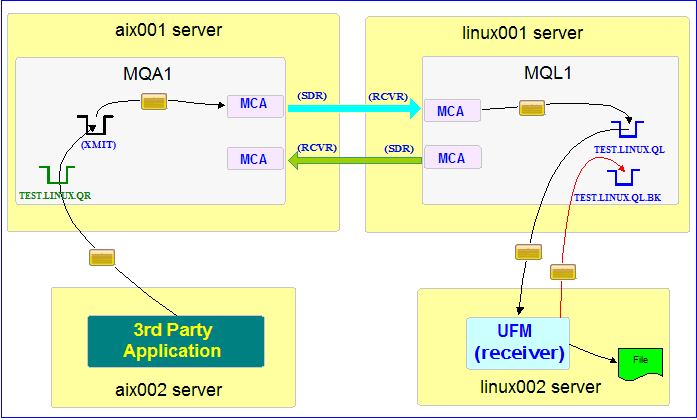

In this example, the following servers are used but they only have WebSphere MQ (WMQ) Client installed (no queue managers):
– aix002 is an AIX server with WMQ Client and UFM software installed
– linux002 is a Linux server with WMQ Client and UFM software installed

In this example, the following queue managers are used:
MQA1 is a queue manager residing on a AIX (aix001) server (sender)
MQL1 is a queue manager residing on a Linux (linux001) server (receiver)

TEST.LINUX.QL and TEST.LINUX.QL.BK are local queues defined in queue manager MQL1 (receiver)
TEST.LINUX.QR is a remote queue defined in queue manager MQA1 (sender)

If you do not know how to define/setup communication between 2 queue managers then follow the instructions in this blog posting:
https://www.capitalware.com/rl_blog/?p=509

Step #1: On the linux002 server, create a file in the mq directory called mql1.xml and copy the following into the file:

<?xml version="1.0" encoding="ISO-8859-1"?>
<!DOCTYPE UFM_MQ SYSTEM "UFM_MQ.dtd">
<UFM_MQ>
    <QMgrName>MQL1</QMgrName>
    <QueueName>TEST.LINUX.QL</QueueName>
    <Hostname>linux001</Hostname>
    <ChannelName>SYSTEM.DEF.SVRCONN</ChannelName>
    <Port>1414</Port>
    <UserID>tester</UserID>
</UFM_MQ>

The mql1.xml (UFM_MQ XML) file describes how to connect to the remote MQL1 queue manager on server linux001. The connection will use UserID of tester. If you do not have that UserID defined on the linux001 server then use a UserID that is defined.

Step #2: On the linux002 server, in the UFM install directory, create a file called ufm_receive_test_8.xml and copy the following into the file:

<?xml version="1.0" encoding="ISO-8859-1"?>
<!DOCTYPE UFM_Workflow SYSTEM "UFM_Workflow.dtd">
<UFM_Workflow>

  <Actions>
    <MQReceive getwithconvert="Y" run="D">
      <MQ>
        <MQFile>mql1.xml</MQFile>
        <BackOutQName>TEST.LINUX.QL.BK</BackOutQName>
      </MQ>
      <Default>
         <Directory override="Y">/home/roger/UFM/</Directory>
         <FileName override="Y">Test_${INDEX}.msg</FileName>
      </Default>
    </MQReceive>
  </Actions>

</UFM_Workflow>

When UFM is started, it will run as a daemon (run=”D”) and use a backout queue called TEST.LINUX.QL.BK just in case there is an issue with a message. UFM will use ‘get with convert’ option when retrieving the messages.

Note: The messages will not have the standard UFM information in the MQMD or UFM_Msg XML (in the message data) because the messages originated from a 3rd party application. Therefore, we MUST override both the directory and filename information. In the Default element, I have set both Directory and FileName elements to override the incoming message’s values. Hence, UFM will override the message’s specified directory and use the one provided. Either create /home/roger/UFM/ directory on your Linux server or use a directory that already exist on your Linux server. UFM will also override the filename with the value in FileName element. The INDEX token will start at 1 and be automatically incremented as UFM receives a new message.

Step #3: On the linux002 server, start UFM to receive the file transfers:

./ufm.sh ufm_receive_test_8.xml &

Step #4: On the aix002 server, start the 3rd party application to send the messages to the queue.

Step #5: On the linux002 server, verify that the file(s) was/were put into the /home/roger/UFM/ directory or whatever directory you specified in the ufm_receive_test_8.xml file.

Step #6: Finally, we need to stop UFM daemon that is running on the linux002 server. In the UFM install directory, create a file called ufm_putquit_test_8.xml and copy the following into the file:

<?xml version="1.0" encoding="ISO-8859-1"?>
<!DOCTYPE UFM_Workflow SYSTEM "UFM_Workflow.dtd">
<UFM_Workflow>
  <Actions>
    <MQPutQuit>
      <MQ>
        <MQFile>mql1.xml</MQFile>
      </MQ>
    </MQPutQuit>
  </Actions>
</UFM_Workflow>

Step #7: On the linux002 server, run UFM with the MQPutQuit action:

./ufm.sh ufm_putquit_test_8.xml

This blog demonstrates how to use UFM to receive messages via MQ that originated from a 3rd party application.

Regards,
Roger Lacroix
Capitalware Inc.

Capitalware, IBM i (OS/400), IBM MQ, Java, Linux, macOS (Mac OS X), Open Source, Universal File Mover, Unix, Windows Comments Off on File Transfer from 3rd Party Application to Universal File Mover (How To #8)

File Transfer to 3rd Party Application using Universal File Mover (How To #7)

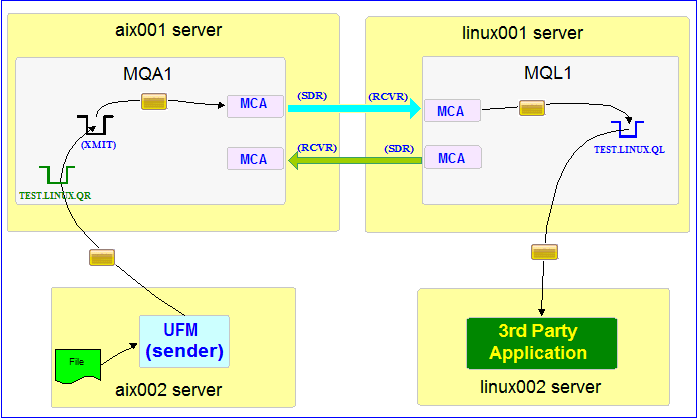
I sometimes get a question like “can UFM be used to send files as MQ messages to a 3rd party application”. The answer is yes. In this blog posting, I will show how to do a file transfer in “client mode” when UFM connects to the queue manager.

Things to note: UFM stores the directory name, file name and job name in the MQMD if the following is true:

  • Directory name is less than 33 characters
  • File name is less than 33 characters
  • Job name is less than 25 characters

If any field exceeds these length values then UFM will create UFM_Msg XML and insert it into the message data. Hence, this will be a problem for the 3rd party application as they will not expect it.

Therefore, the sample below will explicitly set the directory name and file name using the Remote element to make sure the field sizes are small and that the UFM_Msg XML is not created.


In this example, the following servers are used but they only have WebSphere MQ (WMQ) Client installed (no queue managers):
– aix002 is an AIX server with WMQ Client and UFM software installed
– linux002 is a Linux server with WMQ Client and UFM software installed

In this example, the following queue managers are used:
MQA1 is a queue manager residing on a AIX (aix001) server (sender)
MQL1 is a queue manager residing on a Linux (linux001) server (receiver)

TEST.LINUX.QL is a local queue defined in queue manager MQL1 (receiver)
TEST.LINUX.QR is a remote queue defined in queue manager MQA1 (sender)

If you do not know how to define/setup communication between 2 queue managers then follow the instructions in this blog posting:
https://www.capitalware.com/rl_blog/?p=509

Step #1: On the aix002 server, create a file in the mq directory called mqa1.xml and copy the following into the file:

<?xml version="1.0" encoding="ISO-8859-1"?>
<!DOCTYPE UFM_MQ SYSTEM "UFM_MQ.dtd">
<UFM_MQ>
    <QMgrName>MQA1</QMgrName>
    <QueueName>TEST.LINUX.QR</QueueName>
    <Hostname>aix001</Hostname>
    <ChannelName>SYSTEM.DEF.SVRCONN</ChannelName>
    <Port>1414</Port>
    <UserID>tester</UserID>
</UFM_MQ>

The mqa1.xml (UFM_MQ XML) file describes how to connect to the remote MQA1 queue manager on server aix001. The connection will use UserID of tester. If you do not have that UserID defined on the aix001 server then use a UserID that is defined.

Step #2: On the aix002 server, create a file in the data directory called test.txt and put a simple text message in the file (i.e. This is a test message.)

Step #3: On the AIX server, in the UFM install directory, create a file called ufm_send_test_7.xml and copy the following into the file:

<?xml version="1.0" encoding="ISO-8859-1"?>
<!DOCTYPE UFM_Workflow SYSTEM "UFM_Workflow.dtd">
<UFM_Workflow>

  <Actions>
    <MQSend delete="N" format="S">
      <File>data/test.txt</File>
      <MQ>
        <MQFile>mqa1.xml</MQFile>
      </MQ>
      <Remote>
        <Directory>/junk/</Directory>
        <FileName>short.txt</FileName>
      </Remote>
    </MQSend>
  </Actions>

</UFM_Workflow>

When UFM is started, it will send the specified file and mark the message’s MQMD format as ‘string’.

Step #4: On the aix002 server, start UFM to send the file:

./ufm.sh ufm_send_test_7.xml

UFM will start and put the file as a message to the specified queue then terminate.

Step #5: On the linux002 server, run the 3rd party application to retrieve the messages from the queue.

This blog demonstrates how to use UFM to send files via MQ to a 3rd party application.

Regards,
Roger Lacroix
Capitalware Inc.
Capitalware, IBM i (OS/400), IBM MQ, Java, Linux, macOS (Mac OS X), Open Source, Universal File Mover, Unix, Windows Comments Off on File Transfer to 3rd Party Application using Universal File Mover (How To #7)