StickNFind – Bluetooth Powered Ultra Small Location Stickers

StickNFind is a project on the crowdsourcing site Indiegogo. The StickNFind works by placing a small Bluetooth sticker onto a remote, pet’s collar, or even your child’s backpack. You can then use your iPhone or Android device to locate the item, causing it to vibrate and light up. The receiver is about the size of a quarter and is very thin

Very cool!!

Regards,
Roger Lacroix
Capitalware Inc.

iPhone, iPad & iPod Touch Comments Off on StickNFind – Bluetooth Powered Ultra Small Location Stickers

Football Week # 16

Well, week # 15 was ok. Small Sliding scale picks were 8-8 and Fibonacci Sliding scale picks were 8-8.

Small Sliding scale picks for week #16 (least probable to most probable):

F1   St. Louis Rams                  at      Tampa Bay Buccaneers   F3.0
U2   San Diego Chargers              at      New York Jets          F3.0
F3   Tennessee Titans                at      Green Bay Packers      F11.5
F4   New Orleans Saints              at      Dallas Cowboys         F2.5
F5   Chicago Bears        F5.0       at      Arizona Cardinals
F6   New York Giants      F1.5       at      Baltimore Ravens
F7   Indianapolis Colts   F6.5       at      Kansas City Chiefs
F8   Buffalo Bills                   at      Miami Dolphins         F4.0
F9   Oakland Raiders                 at      Carolina Panthers      F7.0
F10  Atlanta Falcons      F4.0       at      Detroit Lions
F11  Washington Redskins  F5.0       at      Philadelphia Eagles
U12  Cincinnati Bengals              at      Pittsburgh Steelers    F4.0
F13  New England Patriots F15.0      at      Jacksonville Jaguars
F14  Minnesota Vikings               at      Houston Texans         F7.0
U15  San Francisco 49ers  F1.0       at      Seattle Seahawks
F16  Cleveland Browns                at      Denver Broncos         F13.0

Fibonacci Sliding scale picks for week #16 (least probable to most probable):

U1   New Orleans Saints              at      Dallas Cowboys         F2.5
F2   Tennessee Titans                at      Green Bay Packers      F11.5
F3   San Diego Chargers              at      New York Jets          F3.0
F4   Oakland Raiders                 at      Carolina Panthers      F7.0
F5   Indianapolis Colts   F6.5       at      Kansas City Chiefs
F6   New York Giants      F1.5       at      Baltimore Ravens
F7   Buffalo Bills                   at      Miami Dolphins         F4.0
F8   Cleveland Browns                at      Denver Broncos         F13.0
F9   Washington Redskins  F5.0       at      Philadelphia Eagles
U10  Cincinnati Bengals              at      Pittsburgh Steelers    F4.0
F11  Chicago Bears        F5.0       at      Arizona Cardinals
F12  St. Louis Rams                  at      Tampa Bay Buccaneers   F3.0
F13  Atlanta Falcons      F4.0       at      Detroit Lions
F14  Minnesota Vikings               at      Houston Texans         F7.0
F15  New England Patriots F15.0      at      Jacksonville Jaguars
U16  San Francisco 49ers  F1.0       at      Seattle Seahawks

Enjoy. 🙂 As they say in the stock market, past perform is no indication of future performance.

Regards,
Roger Lacroix

Football 1 Comment

New: Universal File Mover v1.0.1

Capitalware is pleased to announce the release of Universal File Mover v1.0.1. It is a free open source project.

Universal File Mover is more than a simple tool to manage the transfer of files. It allows the user to combine business processes into a workflow. The user combines a series of Action commands to create the UFM Workflow XML file. UFM is supported on AIX, HP-UX, IBM i (OS/400), Linux, Mac OS X, Solaris and Windows.

    Changes:

  • Added new ReEncode Action to change the character encoding of a file
  • Fixed an issue with the Receive action using run=’S’ and putting an empty message to the backout queue.

For more information on Universal File Mover, please go to:
https://www.capitalware.com/ufm_overview.html

Regards,
Roger Lacroix
Capitalware Inc.

Capitalware, IBM i (OS/400), IBM MQ, Java, Linux, macOS (Mac OS X), Open Source, Universal File Mover, Unix, Windows Comments Off on New: Universal File Mover v1.0.1

New: MQ File Mover v4.1.6

Capitalware is pleased to announce the release of MQ File Mover v4.1.6. It is a free open source project.

MQ File Mover is a managed file transfer solution that facilitates the transfer of files using IBM’s WebSphere MQ (aka MQSeries). MQFM processes “Action” commands which are controlled through an MQFM Workflow XML file. The user combines a series of Action commands to create the MQFM Workflow XML file.

    Changes:

  • Fixed an issue with the Receive action using run=’S’ and putting an empty message to the backout queue.

For more information on MQ File Mover, please go to:
http://www.capitalware.biz/mqfm_overview.html

Regards,
Roger Lacroix
Capitalware Inc.

Capitalware, IBM i (OS/400), IBM MQ, Java, Linux, macOS (Mac OS X), MQ File Mover, Open Source, Unix, Windows Comments Off on New: MQ File Mover v4.1.6

Answers to Some Very Common Universal File Mover (UFM) Questions

Q: Does Universal File Mover (UFM) require Java?

Yes, Universal File Mover (UFM) requires Java v1.5 or higher (no, it will not work with Java v1.3 or v1.4)


Q: Does Universal File Mover support platform XXX ?

Universal File Mover is supported on AIX, HP-UX, IBM i (OS/400), Linux, Mac OS X, Solaris and Windows (plus any other platform that supports Java v1.5 or higher)


Q: Can Universal File Mover connect in different ways to different servers for file transfers?

Yes, Universal File Mover can transfer files in 1 of 5 ways: WebSphere MQ, FTP, SFTP, SCP and HTTP. For example, UFM can retrieve a file from a remote server via FTP and then send it via WebSphere MQ to another server. UFM can move/transfer files in any combination the user wishes.


Q: Can I send an extremely large file via MQ with Universal File Mover?

Yes, Universal File Mover can send a file of any size and yes, it uses MQ’s message segmentation for large files


Q: Can Universal File Mover monitor a directory for incoming files then send the files?

Yes, Universal File Mover can monitor a directory for files – see Watch Action


Q: Do I need MQ installed on the server?

Yes, Universal File Mover requires MQ to be installed along with the MQ/Java component (yes, you can cheat and only copy the MQ JAR files)


Q: Can Universal File Mover send files to different queues?

Yes, each MQSend Action can specify different target queues


Q: Can I run more than 1 Universal File Mover MQReceive Action at the same time?

Yes, you can run more than 1 MQReceive Action as a daemon (Unix/Linux) or Windows service (Windows) on the same server


Q: Can I view the results of an UFM Workflow in a centralized location?

Yes. First add the Status element to the Global element of the Workflow. The Status element contains the MQ information regarding the queue manager name and status queue name. Next use the Universal File Mover Status Monitor application to view the status messages on the status queue.

Regards,
Roger Lacroix
Capitalware Inc.

Capitalware, IBM i (OS/400), IBM MQ, Java, Linux, macOS (Mac OS X), Open Source, Universal File Mover, Unix, Windows Comments Off on Answers to Some Very Common Universal File Mover (UFM) Questions

Send the Same Message to Multiple Queues using Universal File Mover (How To #3)

In this blog posting, I will show how to use a send the same message to multiple queues at the same time. In this example, Universal File Mover (UFM) will connect to the queue manager in “client mode”.
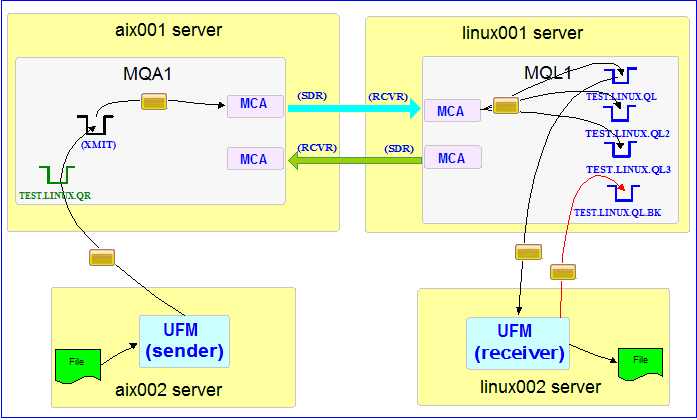

In this example, the following servers are used but they only have WebSphere MQ (WMQ) Client installed (no queue managers):
– aix002 is an AIX server with WMQ Client and UFM software installed
– linux002 is a Linux server with WMQ Client and UFM software installed

In this example, the following queue managers are used:
MQA1 is a queue manager residing on a AIX (aix001) server (sender)
MQL1 is a queue manager residing on a Linux (linux001) server (receiver)

TEST.LINUX.QL, TEST.LINUX.QL2, TEST.LINUX.QL3 and TEST.LINUX.QL.BK are local queues defined in queue manager MQL1 (receiver)
MQL1 is a queue manager alias defined in queue manager MQA1 (sender) if your XMIT queue is not called MQL1

If you do not know how to define/setup communication between 2 queue managers then follow the instructions in this blog posting:
https://www.capitalware.com/rl_blog/?p=509

Step #1: On the linux002 server, create a file in the mq directory called mql1.xml and copy the following into the file:

<?xml version="1.0" encoding="ISO-8859-1"?>
<!DOCTYPE UFM_MQ SYSTEM "UFM_MQ.dtd">
<UFM_MQ>
    <QMgrName>MQL1</QMgrName>
    <QueueName>TEST.LINUX.QL</QueueName>
    <Hostname>linux001</Hostname>
    <ChannelName>SYSTEM.DEF.SVRCONN</ChannelName>
    <Port>1414</Port>
    <UserID>tester</UserID>
</UFM_MQ>

The mql1.xml (UFM_MQ XML) file describes how to connect to the remote MQL1 queue manager on server linux001. The connection will use UserID of tester. If you do not have that UserID defined on the linux001 server then use a UserID that is defined.

Step #2: On the linux002 server, in the UFM install directory, create a file called ufm_receive_test_3.xml and copy the following into the file:

<?xml version="1.0" encoding="ISO-8859-1"?>
<!DOCTYPE UFM_Workflow SYSTEM "UFM_Workflow.dtd">
<UFM_Workflow>

  <Actions>
    <MQReceive getwithconvert="Y" run="D">
      <MQ>
        <MQFile>mql1.xml</MQFile>
        <BackOutQName>TEST.LINUX.QL.BK</BackOutQName>
      </MQ>
      <Default>
         <Directory override="Y">/home/roger/UFM/</Directory>
      </Default>
    </MQReceive>
  </Actions>

</UFM_Workflow>

When UFM is started, it will run as a daemon (run=”D”) and use a backout queue called TEST.LINUX.QL.BK just in case there is an issue with a message. UFM will use ‘get with convert’ option when retrieving the messages. UFM will override the message’s specified directory and use the one provided. Either create /home/roger/UFM/ directory on your Linux server or use a directory that already exist on your Linux server.

Step #3: On the linux002 server, start UFM to receive the file transfers:

./ufm.sh ufm_receive_test_3.xml &

Step #4: On the aix002 server, create a file in the mq directory called mqa1-dl.xml and copy the following into the file:

<?xml version="1.0" encoding="ISO-8859-1"?>
<!DOCTYPE UFM_MQ SYSTEM "UFM_MQ.dtd">
<UFM_MQ>
    <QMgrName>MQA1</QMgrName>
    <DistributionList>
      <QueueName qmgrname="MQL1">TEST.LINUX.QR</QueueName>
      <QueueName qmgrname="MQL1">TEST.LINUX.QR2</QueueName>
      <QueueName qmgrname="MQL1">TEST.LINUX.QR3</QueueName>
    </DistributionList>
    <Hostname>aix001</Hostname>
    <ChannelName>SYSTEM.DEF.SVRCONN</ChannelName>
    <Port>1414</Port>
    <UserID>tester</UserID>
</UFM_MQ>

The mqa1-dl.xml (UFM_MQ XML) file describes how to connect to the remote MQA1 queue manager on server aix001 and use 3 queues in the distribution list. The connection will use UserID of tester. If you do not have that UserID defined on the aix001 server then use a UserID that is defined.

Step #5: On the aix002 server, create a file in the data directory called test.txt and put a simple text message in the file (i.e. This is a test message.)

Step #6: On the AIX server, in the UFM install directory, create a file called ufm_send_test_3.xml and copy the following into the file:

<?xml version="1.0" encoding="ISO-8859-1"?>
<!DOCTYPE UFM_Workflow SYSTEM "UFM_Workflow.dtd">
<UFM_Workflow>

  <Actions>
    <MQSend delete="N" format="S">
      <File>data/test.txt</File>
      <MQ>
        <MQFile>mqa1-dl.xml</MQFile>
      </MQ>
      <Remote>
        <Directory>/var/mqm/</Directory>
      </Remote>
    </MQSend>
  </Actions>

</UFM_Workflow>

When UFM is started, it will send the specified file to the 3 queues in the distribution list and mark the message’s MQMD format as ‘string’.

Step #7: On the aix002 server, start UFM to send the file:

./ufm.sh ufm_send_test_3.xml

UFM will start and put the file as a message to the specified queue then terminate.

Step #8: On the linux002 server, verify that the test file (i.e. test.txt) was put into the /home/roger/UFM/ directory or whatever directory you specified in the ufm_receive_test_3.xml file.

Step #9: Finally, we need to stop UFM daemon that is running on the linux002 server. In the UFM install directory, create a file called ufm_putquit_test_3.xml and copy the following into the file:

<?xml version="1.0" encoding="ISO-8859-1"?>
<!DOCTYPE UFM_Workflow SYSTEM "UFM_Workflow.dtd">
<UFM_Workflow>
  <Actions>
    <MQPutQuit>
      <MQ>
        <MQFile>mql1.xml</MQFile>
      </MQ>
    </MQPutQuit>
  </Actions>
</UFM_Workflow>

Step #10: On the linux002 server, run UFM with the MQPutQuit action:

./ufm.sh ufm_putquit_test_3.xml

This blog demonstrates how to use UFM at both the sender and receiver ends as MQ clients that connect to remote queue managers.

Regards,
Roger Lacroix
Capitalware Inc.

Capitalware, IBM i (OS/400), IBM MQ, Java, Linux, macOS (Mac OS X), Open Source, Universal File Mover, Unix, Windows Comments Off on Send the Same Message to Multiple Queues using Universal File Mover (How To #3)

Football Week # 15

Well, week # 14 was a good week. 🙂 Small Sliding scale picks were 10-6 and Fibonacci Sliding scale picks were 10-6.

Small Sliding scale picks for week #15 (least probable to most probable):

U1   Carolina Panthers               at      San Diego Chargers     F3.0
U2   Kansas City Chiefs              at      Oakland Raiders        F3.0
U3   Detroit Lions        F5.5       at      Arizona Cardinals
U4   Pittsburgh Steelers  F1.0       at      Dallas Cowboys
U5   New York Jets                   at      Tennessee Titans       F2.0
F6   Jacksonville Jaguars            at      Miami Dolphins         F7.0
U7   Green Bay Packers    F3.0       at      Chicago Bears
F8   Cincinnati Bengals   F3.5       at      Philadelphia Eagles
U9   New York Giants                 at      Atlanta Falcons        F2.0
F10  Minnesota Vikings               at      St. Louis Rams         F3.0
U11  Tampa Bay Buccaneers            at      New Orleans Saints     F3.5
U12  Washington Redskins  F4.0       at      Cleveland Browns
F13  Indianapolis Colts              at      Houston Texans         F8.0
F14  Seattle Seahawks     F4.5       at      Buffalo Bills
F15  San Francisco 49ers             at      New England Patriots   F3.0
F16  Denver Broncos       F3.0       at      Baltimore Ravens

Fibonacci Sliding scale picks for week #15 (least probable to most probable):

U1   Pittsburgh Steelers  F1.0       at      Dallas Cowboys
F2   Minnesota Vikings               at      St. Louis Rams         F3.0
U3   New York Giants                 at      Atlanta Falcons        F2.0
U4   Kansas City Chiefs              at      Oakland Raiders        F3.0
F5   Detroit Lions        F5.5       at      Arizona Cardinals
U6   New York Jets                   at      Tennessee Titans       F2.0
F7   Jacksonville Jaguars            at      Miami Dolphins         F7.0
F8   Carolina Panthers               at      San Diego Chargers     F3.0
F9   Cincinnati Bengals   F3.5       at      Philadelphia Eagles
F10  Denver Broncos       F3.0       at      Baltimore Ravens
F11  Washington Redskins  F4.0       at      Cleveland Browns
U12  Green Bay Packers    F3.0       at      Chicago Bears
F13  Indianapolis Colts              at      Houston Texans         F8.0
U14  Tampa Bay Buccaneers            at      New Orleans Saints     F3.5
U15  San Francisco 49ers             at      New England Patriots   F3.0
F16  Seattle Seahawks     F4.5       at      Buffalo Bills

Enjoy. 🙂 As they say in the stock market, past perform is no indication of future performance.

Regards,
Roger Lacroix

Football 1 Comment

SQLite v3.7.15 Released

D. Richard Hipp has just released SQLite v3.7.15.
http://www.sqlite.org/news.html

SQLite is a software library that implements a self-contained, serverless, zero-configuration, transactional SQL database engine. SQLite is the most widely deployed SQL database engine in the world. The source code for SQLite is in the public domain.

Regards,
Roger Lacroix
Capitalware Inc.

C, Database, IBM i (OS/400), Linux, macOS (Mac OS X), Open Source, Programming, Unix, Windows Comments Off on SQLite v3.7.15 Released

Simple File Transfer using Universal File Mover (How To #2)

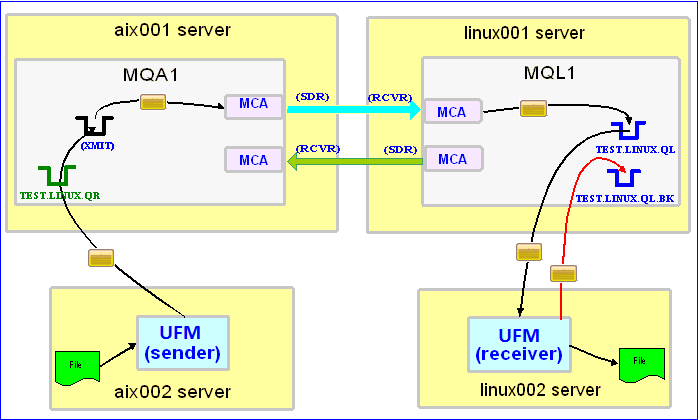
In the Universal File Mover (UFM) How To #1 blog posting, UFM ran in “bindings mode” when it connected to the queue managers. In this blog posting, I will show how to do the same simple file transfer but in “client mode” when UFM connects to the queue managers. Client mode connectivity means that the queue manager resides on a different server than the client application (i.e. UFM).


In this example, the following servers are used but they only have WebSphere MQ (WMQ) Client installed (no queue managers):
– aix002 is an AIX server with WMQ Client and UFM software installed
– linux002 is a Linux server with WMQ Client and UFM software installed

In this example, the following queue managers are used:
MQA1 is a queue manager residing on a AIX (aix001) server (sender)
MQL1 is a queue manager residing on a Linux (linux001) server (receiver)

TEST.LINUX.QL and TEST.LINUX.QL.BK are local queues defined in queue manager MQL1 (receiver)
TEST.LINUX.QR is a remote queue defined in queue manager MQA1 (sender)

If you do not know how to define/setup communication between 2 queue managers then follow the instructions in this blog posting:
https://www.capitalware.com/rl_blog/?p=509

Step #1: On the linux002 server, create a file in the mq directory called mql1.xml and copy the following into the file:

<?xml version="1.0" encoding="ISO-8859-1"?>
<!DOCTYPE UFM_MQ SYSTEM "UFM_MQ.dtd">
<UFM_MQ>
    <QMgrName>MQL1</QMgrName>
    <QueueName>TEST.LINUX.QL</QueueName>
    <Hostname>linux001</Hostname>
    <ChannelName>SYSTEM.DEF.SVRCONN</ChannelName>
    <Port>1414</Port>
    <UserID>tester</UserID>
</UFM_MQ>

The mql1.xml (UFM_MQ XML) file describes how to connect to the remote MQL1 queue manager on server linux001. The connection will use UserID of tester. If you do not have that UserID defined on the linux001 server then use a UserID that is defined.

Step #2: On the linux002 server, in the UFM install directory, create a file called ufm_receive_test_2.xml and copy the following into the file:

<?xml version="1.0" encoding="ISO-8859-1"?>
<!DOCTYPE UFM_Workflow SYSTEM "UFM_Workflow.dtd">
<UFM_Workflow>

  <Actions>
    <MQReceive getwithconvert="Y" run="D">
      <MQ>
        <MQFile>mql1.xml</MQFile>
        <BackOutQName>TEST.LINUX.QL.BK</BackOutQName>
      </MQ>
      <Default>
         <Directory override="Y">/home/roger/UFM/</Directory>
      </Default>
    </MQReceive>
  </Actions>

</UFM_Workflow>

When UFM is started, it will run as a daemon (run=”D”) and use a backout queue called TEST.LINUX.QL.BK just in case there is an issue with a message. UFM will use ‘get with convert’ option when retrieving the messages. UFM will override the message’s specified directory and use the one provided. Either create /home/roger/UFM/ directory on your Linux server or use a directory that already exist on your Linux server.

Step #3: On the linux002 server, start UFM to receive the file transfers:

./ufm.sh ufm_receive_test_2.xml &

Step #4: On the aix002 server, create a file in the mq directory called mqa1.xml and copy the following into the file:

<?xml version="1.0" encoding="ISO-8859-1"?>
<!DOCTYPE UFM_MQ SYSTEM "UFM_MQ.dtd">
<UFM_MQ>
    <QMgrName>MQA1</QMgrName>
    <QueueName>TEST.LINUX.QR</QueueName>
    <Hostname>aix001</Hostname>
    <ChannelName>SYSTEM.DEF.SVRCONN</ChannelName>
    <Port>1414</Port>
    <UserID>tester</UserID>
</UFM_MQ>

The mqa1.xml (UFM_MQ XML) file describes how to connect to the remote MQA1 queue manager on server aix001. The connection will use UserID of tester. If you do not have that UserID defined on the aix001 server then use a UserID that is defined.

Step #5: On the aix002 server, create a file in the data directory called test.txt and put a simple text message in the file (i.e. This is a test message.)

Step #6: On the AIX server, in the UFM install directory, create a file called ufm_send_test_2.xml and copy the following into the file:

<?xml version="1.0" encoding="ISO-8859-1"?>
<!DOCTYPE UFM_Workflow SYSTEM "UFM_Workflow.dtd">
<UFM_Workflow>

  <Actions>
    <MQSend delete="N" format="S">
      <File>data/test.txt</File>
      <MQ>
        <MQFile>mqa1.xml</MQFile>
      </MQ>
      <Remote>
        <Directory>/var/mqm/</Directory>
      </Remote>
    </MQSend>
  </Actions>

</UFM_Workflow>

When UFM is started, it will send the specified file and mark the message’s MQMD format as ‘string’.

Step #7: On the aix002 server, start UFM to send the file:

./ufm.sh ufm_send_test_2.xml

UFM will start and put the file as a message to the specified queue then terminate.

Step #8: On the linux002 server, verify that the test file (i.e. test.txt) was put into the /home/roger/UFM/ directory or whatever directory you specified in the ufm_receive_test_2.xml file.

Step #9: Finally, we need to stop UFM daemon that is running on the linux002 server. In the UFM install directory, create a file called ufm_putquit_test_2.xml and copy the following into the file:

<?xml version="1.0" encoding="ISO-8859-1"?>
<!DOCTYPE UFM_Workflow SYSTEM "UFM_Workflow.dtd">
<UFM_Workflow>
  <Actions>
    <MQPutQuit>
      <MQ>
        <MQFile>mql1.xml</MQFile>
      </MQ>
    </MQPutQuit>
  </Actions>
</UFM_Workflow>

Step #10: On the linux002 server, run UFM with the MQPutQuit action:

./ufm.sh ufm_putquit_test_2.xml

This blog demonstrates how to use UFM at both the sender and receiver ends as MQ clients that connect to remote queue managers.

Regards,
Roger Lacroix
Capitalware Inc.
Capitalware, IBM i (OS/400), IBM MQ, Java, Linux, macOS (Mac OS X), Open Source, Universal File Mover, Unix, Windows Comments Off on Simple File Transfer using Universal File Mover (How To #2)

New: MQ Visual Edit v1.6.2

Capitalware Inc. would like to announce the official release of MQ Visual Edit v1.6.2. This is a FREE upgrade for ALL licensed users of MQ Visual Edit. MQ Visual Edit allows users to view, manipulate and manage messages in a queue of a WebSphere MQ (formally MQSeries) queue manager and presents the data in a simplified format similar to a database utility or spreadsheet program.

For more information about MQ Visual Edit go to:
https://www.capitalware.com/mqve_overview.html

    Changes for MQ Visual Edit v1.6.2:

  • Added an Open button to ‘List of Queues’ window. The user can select 1 or more queues to be opened at once.
  • Updated docs (English only)

Regards,
Roger Lacroix
Capitalware Inc.

Capitalware, IBM MQ, Java, Linux, macOS (Mac OS X), MQ Visual Edit, Unix, Windows Comments Off on New: MQ Visual Edit v1.6.2