Raspberry Pi 4 and Network Interfaces

When I received my new Raspberry Pi 4, I simply plugged in the keyboard, mouse, power, monitor and booted it up. I originally just used a WiFi connection for everything including downloading IBM MQ.

I setup MQ Visual Edit, MQ Explorer, PuTTY and FAR to connect to my Raspberry Pi 4. Now that I had everything up and running, everything was looking pretty good. So, I decided, I really should be using an Ethernet connection rather than WiFi. I grabbed a cat 6 Ethernet cable and plugged the Raspberry Pi into the switch.

As I was copy files to the Raspberry Pi and doing MQ testing, I scratched my head thinking that the speed was the same as before. I thought, oh well, it is a tiny box, so you can’t expect a lot.

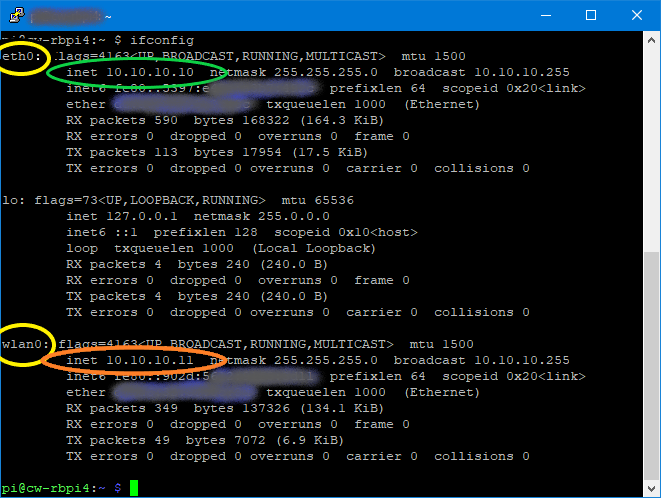
I don’t remember why I ran the ifconfig command but had a Homer moment: D’Oh!

The Raspberry Pi had 2 active network devices: 1 for WiFi and 1 for Ethernet. I highlighted the 2 device names in yellow (eth0 and wlan0). As you can see, each network device has its own IP address.

So, I went back to each application on my Windows PC I was using and updated the IP address to be the one from ‘eth0’. Now, the speed of coping files or doing MQ testing was so, so much better.

Final thoughts, if you are using an Ethernet connection to your Raspberry Pi, make sure you are using the IP address from ‘eth0’ and not from ‘wlan0’. 🙂

Regards,
Roger Lacroix
Capitalware Inc.

Capitalware, IBM MQ, Operating Systems, Raspberry Pi Comments Off on Raspberry Pi 4 and Network Interfaces

Raspberry Pi 4 and IBM MQ

I have a new Raspberry Pi 4 with 8GB of RAM and I decided to install the latest release of IBM MQ on it. The current available release of IBM MQ is v9.2.1 CD.

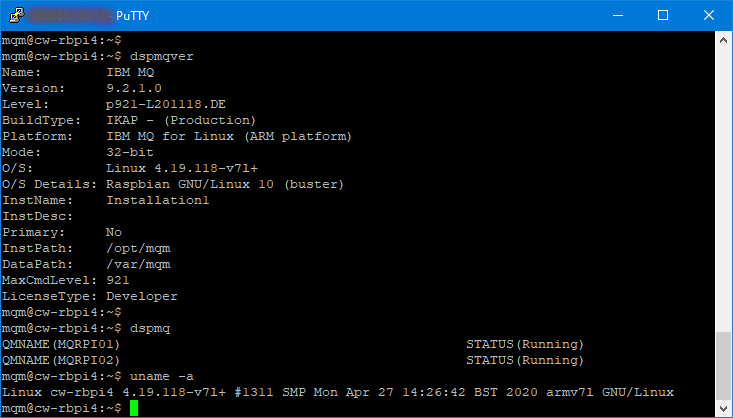
If you want to try out IBM MQ on Raspberry Pi then just follow the instructions on this page. The instructions are pretty straight forward. The only thing that is different from installing IBM MQ on SLES or RHEL versus Raspberry Pi, is that you do not create the ‘mqm’ group and ‘mqm’ UserId. The command

sudo apt install "ibmmq-*"

will do it for you. The only odd thing about this, is that the install command puts ‘mqm’ home directory as ‘/var/mqm/’ rather than ‘/home/mqm/’. I guess I should send an email to some of the MQ people at IBM Hursley UK to find out why they chose to do this or maybe it was a typo. I prefer to have all of my user home directories to be under ‘/home/’ directory.

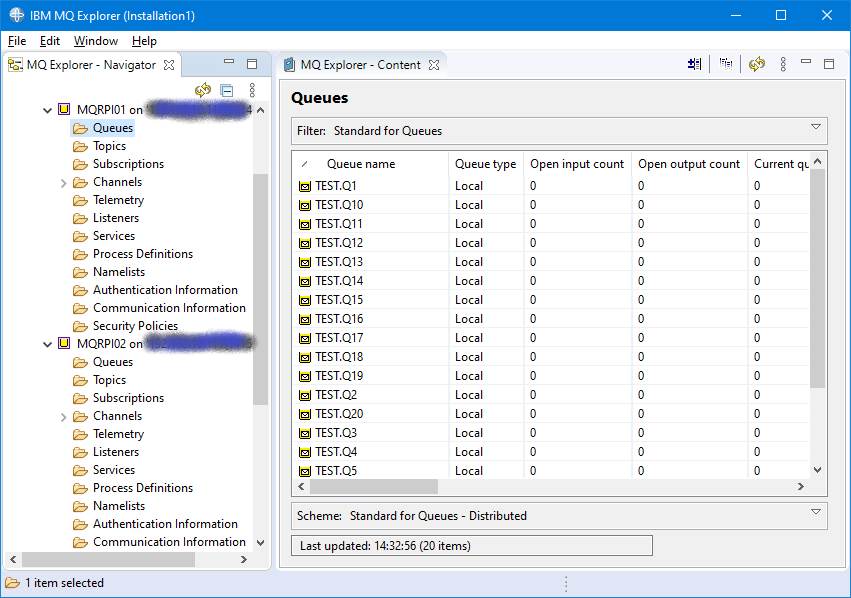
Anyway, I installed IBM MQ v9.2.1 CD and created 2 queue managers.

Here’s an image from MQ Explorer on Windows 10 showing the 2 Raspberry Pi queue managers:

MQ Visual Edit v3.1.0 has a new MQ Tool called: Ping Queue Manager. The Ping Queue Manager tool will test connectivity, opening, closing of a queue and putting AND getting a series of messages to/from a queue of a queue manager.

Just for the fun of it, I was curious how fast a Raspberry Pi queue manager could handle the ping test.

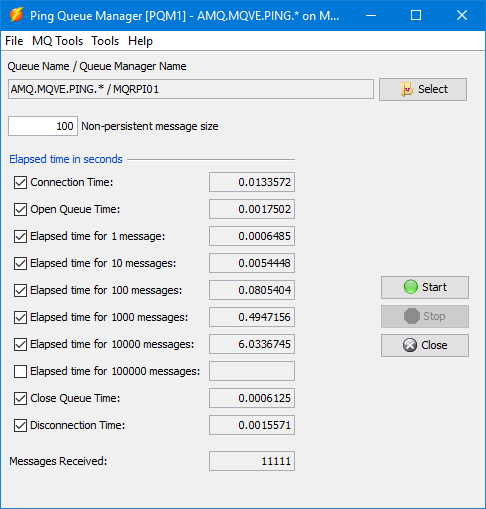
Here’s the results of a ping test against a Raspberry Pi queue manager using 1Gb Ethernet connection (not WiFi):

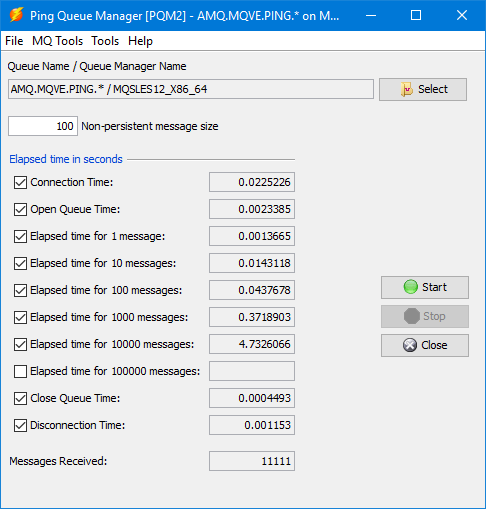
Here’s the results of a ping test against a SLES 12 SP3 64-bit queue manager (MQ v9.1.0) using 1Gb Ethernet connection:

So, if we look at the results of putting and getting 10,000 messages we see:

  • Raspberry Pi queue manager did 10,000 in 6.0336745 seconds. That is 1657.4 message per second.
  • SLES 12 SP3 64-bit queue manager did 10,000 in 4.7326066 seconds. That is 2113 message per second.

So, the Raspberry Pi queue manager will not set a record for speed but at roughly 1657 messages per second, it is impressive. 🙂 Note: If you use a WiFi connection to the Raspberry Pi then expect a much slower message rate.

Note: I have not over-clocked my Raspberry Pi 4 yet. I put the 3 heat-sinks on the Raspberry Pi motherboard and installed the fan on the case, So, it should easily handle over-clocking without over heating. 🙂

Because of the pandemic and people (and students) working from home, I wonder how many people are using a Raspberry Pi 4 as their computer. If people were looking for a cheap computer like a Chromebook then they really should be thinking about getting a Raspberry Pi 4. In case you didn’t know, there is now a product called Raspberry Pi 400. It is a keyboard with a built-in Raspberry Pi. It reminds me of the Commodore 64 from the 80’s. (Ok, I think I’m dating myself!!) If you get the Raspberry Pi 400 Kit then all you need to add is a monitor (that supports HDMI).

I’ll be writing more about Raspberry Pi and IBM MQ in the coming days. 🙂

Regards,
Roger Lacroix
Capitalware Inc.
Capitalware, IBM MQ, Operating Systems, Raspberry Pi Comments Off on Raspberry Pi 4 and IBM MQ

MQ Visual Edit V3.1.0 Released

Capitalware Inc. would like to announce the official release of MQ Visual Edit v3.1.0. This is a FREE upgrade for ALL licensed users of MQ Visual Edit V2/V3. MQ Visual Edit allows users to view, manipulate and manage messages in a queue and/or topic of a IBM MQ queue manager and presents the data in a simplified format similar to a database utility or spreadsheet program.

For more information about MQ Visual Edit go to:
https://www.capitalware.com/mqve_overview.html

    Changes for MQ Visual Edit v3.1.0:

  • Added a new MQ tool called Ping Queue Manager. It allows the user to test the response time of a queue manager putting AND getting a series of messages.
  • Added an AMS Keystore setting page on the Queue Manager Access Profile window to allow the user to select the AMS Keystore to be used.
  • Added the ability the set both the variable width and fixed width font sizes on the General panel of the Preferences window.
  • Added a setting On the Preferences’s ‘Main Window’ panel to allow the user to change the default background or to disable it.
  • Added code to only retrieve the hostname and canonical hostname values once (on program startup) and set it as a system properties.
  • Fixed a bug in Message Edit window for auto column header creation for CSV and FIX data that have more than 700 columns.
  • Fixed an issue with getting entire message when ‘Automatically retrieve the entire message data when opening the ‘Message Edit’ window’ is selected in options.
  • Corrected the fixed width font on macOS and Linux
  • Fixed an issue with the import parsers for MQ Explorer, MO71, and CCDT. Now it correctly handles MQ MI or MQ HA hostnames.
  • Added code to better handle missing channel exit and/or incorrect path to channel exit.
  • Fixed an issue so that the correct queue manager profile is selected after either a rename or move.
  • Added support for escaped characters (i.e. \n, \r, etc. ) on the Import File window when Delimited File is selected
  • Fixed an issue with Clear Queue not recognizing alias or cluster queue when clearing queue.
  • Fixed an issue with ‘List Queues’ from right click on main window not correctly setting queue type.
  • Fixed an issue with MQ Tools drop-down when the users is running the trial-only (MQVE only).
  • Added code to better handle messages with CCSID of 1200 and 1201.
  • Added support for MQMDE structure on the Message Edit window.
  • Fixed an issue with data conversion when ‘Convert On Get’ is selected and the EBCDIC message’s MQMD Format field is blank.
  • Fixed an issue with Generate Report not properly creating the character display portion of the HEX output in the PDF.
  • Enhanced the Mask field processing for the List of Queues window to handle more complex masks.
  • Added a popup window to display the mask to be used for a Refresh action on the List Of Queues window. The user can update/change it and then click ok (or press enter) to refresh the queue list.
  • Updated the list of SSL/TLS CipherSpec/CipherSuite to be aligned with MQ v9.2.
  • Updated docs (English only)

Here’s a screenshot of the new MQ tool called Ping Queue Manager:

Regards,
Roger Lacroix
Capitalware Inc.
Capitalware, IBM MQ, IBM MQ Appliance, Linux, macOS (Mac OS X), MQ Visual Edit, Windows Comments Off on MQ Visual Edit V3.1.0 Released

MQ Visual Browse V3.1.0 Released

Capitalware Inc. would like to announce the official release of MQ Visual Browse v3.1.0. This is a FREE upgrade for ALL licensed users of MQ Visual Browse V2/V3. MQ Visual Browse allows users to view messages in a queue and/or topic of a IBM MQ queue manager and presents the data in a simplified format similar to a database utility or spreadsheet program.

For more information about MQ Visual Browse go to:
https://www.capitalware.com/mqvb_overview.html

    Changes for MQ Visual Browse v3.1.0:

  • Added an AMS Keystore setting page on the Queue Manager Access Profile window to allow the user to select the AMS Keystore to be used.
  • Added the ability the set both the variable width and fixed width font sizes on the General panel of the Preferences window.
  • Added a setting On the Preferences’s ‘Main Window’ panel to allow the user to change the default background or to disable it.
  • Added code to only retrieve the hostname and canonical hostname values once (on program startup) and set it as a system properties.
  • Fixed a bug in Message Edit window for auto column header creation for CSV and FIX data that have more than 700 columns.
  • Fixed an issue with getting entire message when ‘Automatically retrieve the entire message data when opening the ‘Message Edit’ window’ is selected in options.
  • Corrected the fixed width font on macOS and Linux
  • Fixed an issue with the import parsers for MQ Explorer, MO71, and CCDT. Now it correctly handles MQ MI or MQ HA hostnames.
  • Added code to better handle missing channel exit and/or incorrect path to channel exit.
  • Fixed an issue so that the correct queue manager profile is selected after either a rename or move.
  • Fixed an issue with ‘List Queues’ from right click on main window not correctly setting queue type.
  • Added code to better handle messages with CCSID of 1200 and 1201.
  • Added support for MQMDE structure on the Message Edit window.
  • Fixed an issue with data conversion when ‘Convert On Get’ is selected and the EBCDIC message’s MQMD Format field is blank.
  • Fixed an issue with Generate Report not properly creating the character display portion of the HEX output in the PDF.
  • Enhanced the Mask field processing for the List of Queues window to handle more complex masks.
  • Added a popup window to display the mask to be used for a Refresh action on the List Of Queues window. The user can update/change it and then click ok (or press enter) to refresh the queue list.
  • Updated the list of SSL/TLS CipherSpec/CipherSuite to be aligned with MQ v9.2.
  • Updated docs (English only)

Regards,
Roger Lacroix
Capitalware Inc.
Capitalware, IBM MQ, IBM MQ Appliance, Linux, macOS (Mac OS X), MQ Visual Browse, Windows Comments Off on MQ Visual Browse V3.1.0 Released

Merry Christmas and Happy New Year

I would like to wish everyone a Merry Christmas, Happy Hanukkah, Happy Kwanzaa, etc… and a Happy New Year. 🙂

Regards,
Roger Lacroix
Capitalware Inc.
General Comments Off on Merry Christmas and Happy New Year

IBM MQ Fix Pack 9.1.0.7 Released

IBM has just released Fix Pack 9.1.0.7 for IBM MQ V9.1 LTS:
https://www.ibm.com/support/pages/downloading-ibm-mq-9107

Regards,
Roger Lacroix
Capitalware Inc.
Fix Packs for MQ, IBM i (OS/400), IBM MQ, IBM MQ Appliance, Linux, Unix, Windows Comments Off on IBM MQ Fix Pack 9.1.0.7 Released

MQ Visual Edit and IBM MQ AMS

The other day, an end-user contacted me saying that their MQAdmin had recently implemented IBM MQ AMS (Advanced Message Security) to some of their queue managers and that the end-user was having issues getting MQ Visual Edit working with those particular queue managers.

Its too bad that the customer chose IBM MQ AMS over Capitalware’s MQ Message Encryption. Oh well, c’est la vie – you win some and you lose some. 🙂

IBM’s MQ Knowledge Center has a page called: Quick Start Guide for AMS with Java clients. It provides a great guide on how to get started with AMS and Java applications but the web page is missing some key items:

  • It doesn’t say that you must use MQ JAR files from MQ v9.0 or higher for a non-IBM JRE. i.e. AdoptOpenJDK or Oracle JRE
  • It doesn’t say which MQ JAR files are actually required. It assumes an install with MQ JAR files or redistribution MQ JAR files.
  • It doesn’t say where to store the keystore.conf file but if you read the Windows/Unix AMS pages, those pages say to put it in the {user’s_home_directory}/.mqs/ directory
  • It doesn’t say what to do/set if the keystore.conf is not in the default directory.

If you use an IBM JRE then you can ignore item # 1 but for non-IBM JREs, you will need to use the MQ JAR files from MQ v9.0 or higher.

I’ve mentioned this before, MQ Visual Edit is compiled and linked with Excelsior Jet. Excelsior Jet is a licensed user of Oracle JDK/JRE. Like any other compiler and linker, you have to explicitly select what libraries are required for compilation and linkage. Selecting all of the MQ JAR files just means that the final executable will be a bloated file. For a regular Java (non-JMS) application, I found that the following are the required MQ JAR files (to work with AMS):

  • com.ibm.mq.jar
  • com.ibm.mq.commonservices.jar
  • com.ibm.mq.headers.jar
  • com.ibm.mq.jmqi.jar
  • com.ibm.mq.pcf.jar
  • bcpkix-jdk15on.jar
  • bcprov-jdk15on.jar

The MQ Java client library will look for a file called keystore.conf in the following directory: {user’s_home_directory}/.mqs/. As noted in the Quick Start Guide for AMS with Java clients page, the keystore.conf file must contain the JKS keywords and values. In section 4 on that page it says:

If you already have a keystore.conf file because you have followed the instructions in the Quick Start Guide (Windows or UNIX), you can edit the existing file to add these lines.

That means you can have a single keystore.conf file with both JKS and CMS keywords and values. Very handy.

Finally, what if you don’t have the keystore.conf file in the default directory, then you need to set the MQS_KEYSTORE_CONF JVM environment variable as follows:

java -DMQS_KEYSTORE_CONF=C:\abc\keystore.conf MyAppl

Ok, so now that I have laid the groundwork, back to my customer’s issue with MQ Visual Edit and AMS enabled queue manager.

The customer was using a release of MQ Visual Edit that was built against MQ v8.0 JAR files and their MQAdmin had given them 2 keystore.conf files: 1 with CMS keywords and values and the other with JKS keywords and values. The user had put them in a directory structure like C:\abc\AMS\cms\kdb\ and C:\abc\AMS\jks\

The first problem was that particular release of MQ Visual Edit won’t work with AMS. I created a build of MQ Visual Edit against MQ v9.1.3 JAR files for the customer.

The second problem was that they were not setting the JVM environment variable and when they did, they pointed it to the CMS keystore. I had them correctly set the MQS_KEYSTORE_CONF JVM environment variable and point it to the JKS keystore.

Originally, with the older release of MQ Visual Edit, they were getting Reason Code of 2035 (MQRC_NOT_AUTHORIZED) when connecting to a queue/queue manager with AMS configured. Once they installed the new release of MQ Visual Edit and correctly set the MQS_KEYSTORE_CONF JVM environment variable, now they were getting Reason Code of 2012 (MQRC_ENVIRONMENT_ERROR). This made no sense. As far as I could tell, everything was correct by the documentation (and the parts that I had to read between the lines).

I had the end-user send me the MQ Visual Edit log file so that I could review everything that was going on.

  • Using the latest release of MQ Visual Edit – check
  • MQ Visual Edit was built with MQ v9.1.3 JAR files – check
  • MQS_KEYSTORE_CONF JVM environment variable was set – check
  • Path to keystore.con file was correct and it contained JKS keyword and values – check

I started to bang my head against the wall because the environment was set up correctly and I don’t know why MQ was returning a reason code of 2012 (MQRC_ENVIRONMENT_ERROR).

As I was looking over the MQ Visual Edit log file, I noticed that the end-user had 2 UserIds that were very close in spelling: roger vs rogerl. I told the customer to use the other UserId which happens to be their Windows UserId then everything worked. Hurray!!! 🙂

What I don’t understand is why MQ returned RC of 2012 for an incorrect/invalid UserId. It had me looking at the wrong area. My thinking is that MQ should have returned an RC of 2035 or 2063.

Regards,
Roger Lacroix
Capitalware Inc.
Capitalware, IBM i (OS/400), IBM MQ, IBM MQ Appliance, Java, JMS, Linux, macOS (Mac OS X), MQ Visual Browse, MQ Visual Edit, Security, Unix, Windows, z/OS Comments Off on MQ Visual Edit and IBM MQ AMS

IBM MQ V9.2.1 Announced

IBM has announced IBM MQ V9.2.1:
https://www.ibm.com/common/ssi/cgi-bin/ssialias?infotype=AN&subtype=CA&htmlfid=897/ENUS220-448

    Highlights:

  • MQ V9.2.1 base provides the following:
    • Enhancements to the MQ Console
    • Enhancements to MQ Script commands (MQSC)
    • The authority model has been simplified for MQ running in containers to enable you to define permissions for users without the users having to exist in an LDAP server.
    • IBM MQ supports autoscaling based on queue depth, using the Kubernetes-based Event Driven Autoscaler (KEDA).
    • Support for point-to-point messaging via Advanced Message Queuing Protocol (AMQP)
    • Improved client Server Name Indicator (SNI) flexibility so that users can choose to set a custom hostname instead of a channel name in the Transport Layer Security (TLS) SNI header
  • Managed File Transfer (MFT) enhancements
    • IBM MQ Advanced MFT protocol bridge agent enhancements enable users to choose to limit file transfers per File Transfer Protocol (FTP) and Secure FTP (SFTP) endpoint to reduce the risk of bottlenecks and effectively prioritize file transfers.
    • The IBM MQ Advanced MFT file logger component is part of the redistributable MFT package to enable customers to optionally copy published information about actions for analysis and auditing purposes.
  • MQ Appliance V9.2.1 firmware includes the capabilities in MQ V9.2.1 and is available for the following appliances:
    • MQ Appliance M2001
    • MQ Appliance M2002

Planned availability for IBM MQ V9.2.1 is December 3, 2020 for Electronic software delivery.

IBM MQ (aka WebSphere MQ) homepage
https://www.ibm.com/products/mq

Regards,
Roger Lacroix
Capitalware Inc.
Fix Packs for MQ, IBM MQ, IBM MQ Appliance, Linux, Unix, Windows, z/OS Comments Off on IBM MQ V9.2.1 Announced

Another Useful Feature of runmqsc

I was reading the MQ Knowledge Center today (surprising, yes, I know!) looking up whether or not runmqsc in client mode uses regular PCF commands when sending commands to a remote queue manager. It doesn’t. It uses escaped PCF messages.

Anyway, I stumped across an interesting new feature that IBM included in IBM MQ v8.0 which I didn’t know about. You can now set a prompt for runmqsc. The normal prompt for runmqsc is a blank line. It is fine but not very useful if you get distracted then come back later, you may not remember what queue manager and/or server you were connected to.

There are a couple of problems with IBM’s documentation on MQPROMPT:

  • On Windows, when you issue the SET command with ” (double quotes) wrapping only the value (right-side of equals sign) then the runmqsc will have those double quotes in its prompt
  • On Unix/Linux, the UserId is retrieve with the variable +USER+ but on Windows, the UserId is retrieve with the variable +USERNAME+
  • On Windows, if you want a redirection character (i.e. > or & or < ) then you need to wrap the entire command including environment variable name in double quotes. If you only put the command (right-side of equals sign) in double quotes then the double quotes will show up in the runmqsc prompt.

Example on Linux/Unix:

export MQPROMPT="+QMNAME+ > "

Then when you run runmqsc, your runmqsc prompt will look like:

mqm@linux123:~> runmqsc MQLX01
5724-H72 (C) Copyright IBM Corp. 1994, 2018.
Starting MQSC for queue manager MQLX01.

MQLX01 > 

Example on Windows:

set "MQPROMPT=+QMNAME+ > "

Note: Please note where the ” double quotes are located. It is important!!

Then when you run runmqsc, your runmqsc prompt will look like:

C:\Users\roger>runmqsc MQWT1
5724-H72 (C) Copyright IBM Corp. 1994, 2020.
Starting MQSC for queue manager MQWT1.

MQWT1 > 

Or maybe you want it similar to a prompt on server.

On Linux/Unix, you would do:

export MQPROMPT="[+USERNAME+@+MQ_HOST_NAME+] +QMNAME+ > "

Then when you run runmqsc, your runmqsc prompt will look like:

mqm@linux123:~> runmqsc MQLX01
5724-H72 (C) Copyright IBM Corp. 1994, 2018.
Starting MQSC for queue manager MQLX01.

[mqm@linux123] MQLX01 > 

And on Windows, you would do:

set "MQPROMPT=[+USERNAME+@+MQ_HOST_NAME+] +QMNAME+ > "

Then when you run runmqsc, your runmqsc prompt will look like:

C:\Users\roger>runmqsc MQWT1
5724-H72 (C) Copyright IBM Corp. 1994, 2020.
Starting MQSC for queue manager MQWT1.

[roger@windows123] MQWT1 > 

Or maybe you want the UserId and queue manager name but with a “$” rather than a “>”.

On Linux/Unix, you would do:

export MQPROMPT="+USER+ @ +QMNAME+ $ "

Then when you run runmqsc, your runmqsc prompt will look like:

mqm@linux123:~> runmqsc MQLX01
5724-H72 (C) Copyright IBM Corp. 1994, 2018.
Starting MQSC for queue manager MQLX01.

mqm @ MQLX01 $ 

And on Windows, you would do:

set “MQPROMPT=+USERNAME+ @ +QMNAME+ $ “

Then when you run runmqsc, your runmqsc prompt will look like:

C:\Users\roger>runmqsc MQWT1
5724-H72 (C) Copyright IBM Corp. 1994, 2020.
Starting MQSC for queue manager MQWT1.

roger @ MQWT1 $ 

Or maybe you log onto the remote server with PuTTY or similar xterm terminal emulation and you want a token to let you know which environment you are in (i.e. DEV, QA, PROD, etc).

Example on Linux/Unix:

export MQPROMPT="[PROD] +USER+ @ +QMNAME+ > "

Then when you run runmqsc, your runmqsc prompt will look like:

mqm@linux123:~> runmqsc MQLX01
5724-H72 (C) Copyright IBM Corp. 1994, 2018.
Starting MQSC for queue manager MQLX01.

[PROD] mqm @ MQLX01 > 

Example on Windows:

set “MQPROMPT=[PROD] +USERNAME+ @ +QMNAME+ > “

Then when you run runmqsc, your runmqsc prompt will look like:

C:\Users\roger>runmqsc MQWT1
5724-H72 (C) Copyright IBM Corp. 1994, 2020.
Starting MQSC for queue manager MQWT1.

[PROD] roger @ MQWT1 > 

I tried setting the color for MQPROMPT like PROMPT on Windows and PS1 on Linux but it appears that runmqsc does not support it.

Note: Rather than setting the MQPROMPT each time you are using runmqsc, simply set the command in your profile on Linux/Unix or in the Environment Variables panel on Windows.

Regards,
Roger Lacroix
Capitalware Inc.
Education, IBM i (OS/400), IBM MQ, IBM MQ Appliance, Linux, Unix, Windows Comments Off on Another Useful Feature of runmqsc

MQ Batch Toolkit v3.2.1 Released

Capitalware Inc. would like to announce the official release of MQ Batch Toolkit v3.2.1. This is a FREE upgrade for ALL licensed users of MQ Batch Toolkit. MQ Batch Toolkit allows users to manipulate, monitor and manage messages in a queue of an IBM MQ (formally WebSphere MQ & MQSeries) queue manager from a command-line or shell scripting environment.

For more information about MQ Batch Toolkit go to:
https://www.capitalware.com/mqbt_overview.html

    Changes for MQ Batch Toolkit v3.2.1:

  • Added code to better handle missing channel exit and/or incorrect path to channel exit.
  • Fixed a bug in the registration process
  • Updated docs (English only)

Regards,
Roger Lacroix
Capitalware Inc.
Capitalware, IBM MQ, Linux, macOS (Mac OS X), MQ Batch Toolkit, Windows Comments Off on MQ Batch Toolkit v3.2.1 Released